Category: Uncategorized

  • 12 Best AI Background Remover Tools (2025 Developer Guide)

    12 Best AI Background Remover Tools (2025 Developer Guide)

    In today's visually driven market, clean, professional product photos and marketing assets are non-negotiable. Manually cutting out backgrounds is a bottleneck; it’s slow, expensive, and simply doesn't scale for modern workflows. This is precisely the problem AI-powered background removers were built to solve, revolutionizing visual production for ecommerce brands, development teams, and creative agencies.

    However, the market is crowded, and not all tools deliver the same quality or functionality. Choosing the best AI background remover depends entirely on your specific needs. Some platforms offer powerful APIs designed for high-volume, automated processing in applications, making them ideal for developers. Others excel at handling notoriously difficult details like hair, fur, and transparent objects, which is critical for product photography. Many are bundled into larger creative suites, offering a one-stop-shop for marketing and social media teams.

    This comprehensive guide cuts through the noise to help you find the perfect fit. We will analyze 12 of the top solutions, evaluating their core strengths, honest limitations, and practical applications. Each review includes direct links and visual examples to illustrate performance. We will compare key features like:

    • API availability and developer support
    • Batch processing capabilities
    • Accuracy with complex edges (hair, fur, etc.)
    • Pricing models and cost-per-image

    Whether you need a simple tool for a few images or a robust, scalable solution to integrate into your platform, this list provides the detailed insights required to make an informed decision. Let’s dive into the platforms that can streamline your workflow and elevate your final images.

    1. PixelPanda

    PixelPanda stands out as a powerful, developer-centric solution that excels far beyond simple background removal. It functions as a comprehensive AI-powered image processing suite, offering an API designed for scalability and seamless integration. This makes it a top-tier choice for teams needing to automate high-volume visual production without sacrificing the nuanced quality demanded by professional use cases, positioning it as one of the best AI background remover platforms available.

    A demonstration of PixelPanda's AI background removal on a car, showing a clean cutout with precise edges.

    The platform is engineered to handle complex subjects with exceptional precision. Its AI models are specifically trained for studio-quality edge detection, preserving fine details like hair, fur, and delicate transparencies that often challenge other tools. This focus on detail ensures that product photos, portraits, and marketing assets maintain a professional, clean look ready for any application. Teams can test these capabilities directly using the platform's hands-on demo; you can explore the background removal tool on pixelpanda.ai to see the results firsthand.

    Key Features & Advantages

    • Comprehensive Toolset: PixelPanda is not a one-trick pony. It bundles background removal with 4x upscaling, watermark removal, face enhancement, and smart inpainting, all accessible via a single, unified API.
    • Developer-First Design: The platform prioritizes ease of integration with a simple REST API, official SDKs, and clear documentation. This allows development teams to quickly embed its capabilities into web, mobile, or backend workflows.
    • Built for High-Volume Workflows: With robust batch processing capabilities and support for transparent PNG exports, PixelPanda is optimized for ecommerce product catalogs and large-scale marketing campaigns.
    • Low-Risk Evaluation: A generous free trial is available without requiring a credit card, allowing teams to fully evaluate the API's performance and integration fit before making a commitment.

    Potential Considerations

    The primary drawback is the lack of public, detailed pricing tiers on the website. To understand the cost for high-volume usage, teams will likely need to sign up for the trial or contact the sales department. Additionally, while the AI is highly advanced, very complex or brand-specific imagery may still benefit from a final manual review to ensure perfect alignment with creative standards.

    2. remove.bg (Kaleido/Canva)

    A veteran in the AI background removal space, remove.bg remains a top contender due to its mature platform and consistent, high-quality results. Acquired by Canva, it focuses purely on background removal and does it exceptionally well, making it one of the best AI background remover tools for users who need reliability and predictability, especially for product photos and portraits. The platform is built for both individual use and high-volume, automated workflows.

    A screenshot of the remove.bg pricing page showing various credit-based subscription plans and pay-as-you-go options.

    Its core strength lies in its robust API and extensive integrations, which allow developers and businesses to seamlessly incorporate background removal into their existing applications. The service offers dedicated desktop apps for Windows, Mac, and Linux, plus a Photoshop plugin, facilitating efficient batch processing for designers and e-commerce teams.

    Standout Features & Use Cases

    The platform’s edge detection is particularly refined for clearly defined subjects like products, logos, and people, delivering clean cutouts with minimal manual intervention. The credit-based system allows users to pay for high-resolution downloads as needed, offering a free preview for every upload.

    • Best For: E-commerce sellers, developers needing a stable API, and marketing teams requiring bulk processing.
    • Pricing Model: Offers a free plan with one free credit and 50 free API previews per month. Paid plans are credit-based, available via subscription or pay-as-you-go bundles.
    • Not Ideal For: Users needing advanced creative editing tools beyond simple background replacement. The credit model can also become expensive for extremely high-volume, cost-sensitive projects.
    • Website: https://www.remove.bg

    3. Adobe Express Background Remover

    Positioned within a comprehensive creative suite, Adobe Express offers more than just a standalone tool; it integrates one of the best AI background remover functions directly into a full-fledged design platform. This browser-based editor is ideal for users who need to remove a background and immediately use the resulting image in a larger project, like a social media post, marketing banner, or product mockup. It leverages Adobe's trusted imaging technology, making it a reliable choice for creators already familiar with the Adobe ecosystem.

    A screenshot of the Adobe Express pricing page, displaying the Free and Premium plan options and the features included in each.

    The primary advantage of Adobe Express is its context. Instead of downloading a transparent PNG and re-uploading it elsewhere, users can transition seamlessly from background removal to applying templates, adding text, accessing Adobe Stock assets, or using brand kits. This unified workflow, available on both desktop and mobile, significantly accelerates content creation for marketing teams and solopreneurs.

    Standout Features & Use Cases

    The platform excels at providing an all-in-one solution. After removing the background, users can instantly resize assets for different social platforms, apply filters, and even schedule posts directly from the app. The AI-powered background remover is highly effective for common subjects, producing clean edges that integrate well into new designs without obvious artifacts.

    • Best For: Social media managers, content creators, and small businesses needing a complete design and publishing tool.
    • Pricing Model: Offers a free plan with core features and limited assets. The Premium plan unlocks all features, premium templates, Adobe Stock photos, and provides a monthly allowance of Generative Credits for AI actions.
    • Not Ideal For: Users who only need a simple, high-volume background removal API or those who prefer not to work within a subscription-based design suite.
    • Website: https://www.adobe.com/express/pricing

    4. Canva Background Remover (within Canva Pro)

    Integrated directly into the world’s most popular design platform, Canva’s Background Remover is a powerful feature for users who need to create polished visuals quickly. Rather than a standalone tool, it’s an essential part of the Canva Pro subscription, designed to streamline the entire content creation workflow from start to finish. This makes it one of the best AI background remover options for marketers, social media managers, and small business owners already using Canva for their design needs.

    A screenshot showing the Canva editor interface with the "Background Remover" button highlighted, demonstrating its one-click functionality on a product image.

    Its primary advantage is convenience. With a single click, users can remove the background from an image and immediately use the cutout in a social media post, presentation, or advertisement using Canva’s vast library of templates and assets. While it lacks the dedicated API or advanced fine-tuning of specialized services, its seamless integration makes it unbeatable for rapid, end-to-end design tasks.

    Standout Features & Use Cases

    The tool excels at handling simple to moderately complex images, like product shots and portraits for social media graphics. The value extends beyond just removal; users gain access to the entire Canva Pro suite, including the Brand Kit, Magic Resize, and an extensive stock media library, creating a comprehensive content creation hub.

    • Best For: Social media managers, marketers, and small business owners who need an all-in-one design and background removal solution.
    • Pricing Model: Included as a feature within Canva Pro and Canva for Teams subscriptions. There is no standalone or pay-as-you-go option for just the background remover.
    • Not Ideal For: Developers needing an API, users requiring high-volume batch processing, or designers who need precise control over complex edges like fine hair. As noted in some user reviews, the pricing changes for team plans have also been a point of contention.
    • Website: https://www.canva.com/pro/background-remover/

    5. PhotoRoom

    PhotoRoom has carved out a niche as an all-in-one AI photo studio designed specifically for e-commerce. It moves beyond simple background removal, offering a comprehensive suite of tools to create professional, marketplace-ready product images. Available on web, iOS, and Android, and supported by a robust API, PhotoRoom is built to scale, serving everyone from individual sellers to large enterprises needing automated image processing.

    PhotoRoom

    Its core advantage is the seamless integration of its excellent background remover with product-centric features. Users can instantly place items into AI-generated scenes, add realistic shadows, retouch imperfections, and export images that meet the specifications for platforms like Amazon, eBay, and Shopify. The batch mode further enhances its utility, allowing users to process up to 250 images at once on higher-tier plans.

    Standout Features & Use Cases

    PhotoRoom excels at creating clean, consistent product shots with minimal effort. The AI background generation and instant shadow features are particularly powerful for staging products without a physical studio. Its API offers a generous free sandbox with 1,000 test images, making it an attractive option for developers building e-commerce solutions. This focus makes it one of the best AI background remover tools for anyone selling products online.

    • Best For: E-commerce sellers, online marketplace vendors, and developers creating product photography workflows.
    • Pricing Model: A free plan is available with watermarked exports. The Pro plan unlocks batch mode and higher-quality exports, while the Business plan offers API access and team collaboration features.
    • Not Ideal For: Users needing a simple, one-off background removal without additional editing features. The "unlimited" exports on paid plans are subject to fair use quotas.
    • Website: https://www.photoroom.com/pricing

    6. Clipdrop (by Stability.ai)

    Backed by Stability.ai, Clipdrop is an ecosystem of AI-powered visual editing tools rather than just a standalone background remover. It positions itself as a versatile creative suite, offering features like image upscaling, object cleanup, relighting, and text removal alongside its core background removal functionality. This makes it a strong candidate for users who need a multi-purpose tool for both product-focused and creative editing tasks, combining several AI capabilities into one streamlined interface.

    A screenshot of the Clipdrop pricing page, showing a free plan and a Pro subscription option with details on credits and features.

    Clipdrop offers one of the best AI background remover APIs for developers seeking a broad range of image manipulation functions beyond simple cutouts. The platform's API is usage-based, providing flexibility for applications with variable demand. This all-in-one approach appeals to creators and businesses looking to consolidate their AI image editing toolkit and avoid subscribing to multiple specialized services. To explore similar developer-focused solutions, you can find more information about AI image processing APIs.

    Standout Features & Use Cases

    The primary advantage of Clipdrop is its comprehensive feature set. Users can remove a background, clean up imperfections with the "Cleanup" tool, and then use "Relight" to adjust the lighting on the subject for a more natural composite. This integrated workflow is ideal for creating polished marketing assets and professional-looking product photos without switching between different applications.

    • Best For: Creative professionals, developers, and marketers needing a suite of AI editing tools, not just background removal.
    • Pricing Model: Includes a free tier with limitations. The Pro plan is a subscription that provides higher resolution, priority processing, and access to all tools with generous usage quotas. API access is billed based on usage.
    • Not Ideal For: Users who require extremely precise cutouts for complex subjects like fine hair, as specialized tools may offer more refined edge detection.
    • Website: https://clipdrop.co/pricing

    7. Pixelcut

    Pixelcut has carved out a niche as an all-in-one AI photo editor tailored for small businesses, creators, and social media managers. While it offers a suite of tools like an AI upscaler and generative backgrounds, its core background removal feature is fast, reliable, and exceptionally user-friendly, particularly on mobile devices. Its strong iOS and Android apps make it a go-to for on-the-fly editing, setting it apart from more desktop-centric or API-focused solutions.

    A screenshot of the Pixelcut pricing page showing a free plan, a Pro plan, and a Business plan with features and monthly/yearly costs.

    The platform is designed for practical, everyday business use. Features like the Magic Eraser, team-based plans with included seats, and a commercial license in paid tiers directly address the needs of e-commerce sellers and marketing teams. Pixelcut also provides a developer API, allowing its powerful editing tools to be integrated into other applications, though its primary strength remains its cohesive, creator-focused platform.

    Standout Features & Use Cases

    Pixelcut excels by combining a powerful AI background remover with other essential creative tools in a single, accessible package. The generative background feature is particularly useful for creating unique product mockups and social media posts without needing complex software. This combination makes it a highly efficient tool for users who need more than just a cutout.

    • Best For: Small e-commerce businesses, social media managers, and content creators who primarily work on mobile devices.
    • Pricing Model: Offers a free plan with limited access. The Pro plan provides unlimited background removals and a monthly credit allowance for AI tools. A developer API is also available with per-endpoint pricing.
    • Not Ideal For: Users needing advanced API features or those on a tight budget for generative tools, as API credits do not roll over.
    • Website: https://www.pixelcut.ai/pricing

    8. Pixlr

    Pixlr positions itself as a powerful, browser-based suite of image editing tools, with its AI background remover being a core feature. It mimics the familiar layout of traditional photo editors like Photoshop but eliminates the need for software installation, making it highly accessible. This platform is more than just a single-task tool; it's a full-fledged editor where background removal is one step in a larger creative workflow. The integration of templates, stock assets, and AI-powered features makes it a one-stop-shop for quick yet comprehensive edits.

    Its main advantage is offering a familiar, layer-based editing environment directly in the browser. Users can remove a background and immediately start adding new elements, text, or filters without switching applications. Batch background removal is also available within the toolset, streamlining workflows for users handling multiple images. While the free version is robust, its AI features are metered by credits, which refresh monthly on paid plans.

    Standout Features & Use Cases

    Pixlr excels by combining a solid AI background remover with a complete editing suite, including an AI object eraser and image expander. This makes it an excellent choice for content creators who need to do more than just isolate a subject. The large template library on premium tiers further accelerates the design process for social media posts, ads, and other marketing collateral.

    • Best For: Content creators, social media managers, and small businesses needing an all-in-one online editor.
    • Pricing Model: Offers a free, ad-supported plan with limited features. Premium plans start at a very low monthly price, providing more AI credits, batch processing, and access to a vast asset library.
    • Not Ideal For: Users seeking a dedicated, high-volume API for programmatic background removal or those who dislike credit-based limits on AI features.
    • Website: https://pixlr.com/remove-background/

    9. Fotor

    Fotor positions itself as an all-in-one visual creation platform, bundling its AI background remover with a comprehensive suite of editing and design tools. Unlike single-purpose removers, Fotor is built for users who need to not only remove a background but also immediately use the resulting image in a new design, social media post, or creative project. This integrated approach makes it a strong contender for content creators and marketers who want a streamlined workflow within a single application.

    Fotor pricing plans, including a free tier and Pro/Pro+ subscriptions that offer AI credits, HD downloads, and batch processing.

    Its strength lies in its consumer-friendly interface and a vast library of templates, which allow users to quickly create professional-looking visuals. The platform offers desktop and mobile apps with cloud storage, ensuring projects are synced across devices. While the core removal tool is effective, advanced features like batch processing and high-resolution, transparent exports are reserved for paid subscribers, making the Pro tiers a necessity for serious users.

    Standout Features & Use Cases

    Fotor’s one-click background remover is complemented by manual refine tools for fine-tuning edges on more complex images. The platform also includes an AI upscaler and various background replacement effects, adding significant value beyond simple cutouts. It’s an excellent choice for users who need a versatile tool that handles multiple AI-driven editing tasks, from background removal to image enhancement.

    • Best For: Social media managers, content creators, and small business owners needing a multi-functional design tool.
    • Pricing Model: Offers a free basic plan with limited features. Pro and Pro+ subscriptions unlock batch processing, HD downloads, and a monthly allowance of AI credits for various tools.
    • Not Ideal For: Developers needing API access or users who require unlimited, high-volume background removals without a subscription model.
    • Website: https://www.fotor.com/pricing/

    10. Icons8 Background Remover

    Part of the larger Icons8 ecosystem of design assets, the Icons8 Background Remover offers a straightforward and powerful tool with one of the most flexible pricing structures available. It provides fast, clean cutouts and is designed for users who need both scalability and simplicity. The platform’s main appeal is its clear, tiered access, which accommodates everyone from one-time users to developers requiring high-volume processing via an API.

    Icons8 Background Remover

    This tool stands out by demystifying pricing. Users can choose prepaid per-image packs, limited monthly plans with rollover credits, or a truly unlimited plan for heavy-duty needs. This makes it an excellent choice for businesses with fluctuating demands or those who want to avoid the complexities of credit-based systems. Its integration with the wider Icons8 suite also provides added value for subscribers who need icons, photos, and illustrations.

    Standout Features & Use Cases

    The core offering is a no-fuss, high-quality background removal service powered by robust AI. Its API is well-documented and easy to integrate, making it a solid choice for automated workflows. The transparent pricing and unlimited option are significant differentiators, providing cost predictability that many competitors lack. This makes it one of the best AI background remover options for budget-conscious teams.

    • Best For: Freelancers, small businesses, and developers looking for flexible, predictable pricing and a reliable API.
    • Pricing Model: Offers a free plan with 3 free images. Paid options include prepaid packs, limited monthly subscriptions with credit rollover, and an unlimited monthly plan.
    • Not Ideal For: Users seeking a comprehensive, all-in-one photo editor with advanced creative features beyond background removal.
    • Website: https://icons8.com/bgremover/pricing

    11. Slazzer

    Slazzer is a dedicated AI background removal service that carves out its niche by offering a wide array of integrations and a pricing model that becomes highly competitive at scale. Positioned as a versatile tool for both individual creators and large enterprises, it provides desktop applications, plugins for popular design software like Photoshop, Figma, and Sketch, and a robust API for automated workflows. Its focus is on delivering clean cutouts efficiently across multiple platforms.

    A screenshot of Slazzer's pricing page, detailing its subscription plans and pay-as-you-go credit packs with per-image cost breakdowns.

    The platform’s strength lies in its ecosystem of tools designed to fit into existing creative and e-commerce processes. Beyond simple background removal, it offers supplementary features like object upscaling, relighting, and shadow generation, adding value for users who need more than just a basic cutout. This combination makes it a strong contender in the best AI background remover market for users seeking an all-in-one solution.

    Standout Features & Use Cases

    Slazzer’s credit system is particularly user-friendly, with a clear policy for rolling over unused credits on subscription plans and simple top-up options. This flexibility appeals to users with fluctuating monthly needs. The batch processing tools available in the desktop apps are a significant time-saver for anyone handling large volumes of images, from product catalogs to event photography.

    • Best For: Designers using Figma/Sketch, e-commerce businesses needing bulk processing, and developers looking for a flexible API.
    • Pricing Model: Includes a free plan with limited previews. Paid options are available as monthly/yearly subscriptions or one-time credit packs. Subscriptions offer the best per-image value and credit rollover.
    • Not Ideal For: Users who find tiered credit systems (previews vs. full-resolution downloads) confusing or who only need occasional, single-image edits.
    • Website: https://www.slazzer.com/pricing

    12. Kapwing

    Kapwing positions itself as a comprehensive online content creation suite rather than just a dedicated background remover. It offers a powerful AI background remover for images, but its main appeal lies in integrating this feature within a broader ecosystem of video and image editing tools. This makes it an excellent choice for social media managers, content creators, and marketing teams who need an all-in-one platform for mixed-media projects without juggling multiple applications.

    A screenshot of the Kapwing pricing page detailing the Free, Pro, and for Teams subscription plans.

    The platform shines with its video editing capabilities, including a green-screen style tool that effectively removes video backgrounds. This versatility, combined with access to stock assets, templates, and collaborative team workspaces, provides a cohesive workflow for producing polished visual content. While some AI tools are metered by a credit system, the core functionality is robust for everyday creative tasks.

    Standout Features & Use Cases

    Kapwing’s strength is its convenience, allowing users to remove a background from an image and immediately use it in a video thumbnail, social media post, or animation, all within the same interface. The collaborative features also enable teams to work on projects simultaneously, streamlining the review and approval process. It's an ideal tool for users who view background removal as just one step in a larger creative process.

    • Best For: Social media teams, content creators, and marketers who need a versatile image and video editor with reliable background removal.
    • Pricing Model: Offers a free plan with watermarks and export limits. The Pro plan provides an all-inclusive solution for solo creators, while custom plans are available for teams.
    • Not Ideal For: Users seeking a dedicated, high-volume API for programmatic background removal or those who only need a simple, single-purpose tool.
    • Website: https://www.kapwing.com/pricing

    Top 12 AI Background Removers — Feature Comparison

    Product Core features Quality (★) Price / Value (💰) Target (👥) Unique (✨)
    PixelPanda 🏆 Dev‑friendly API: bg/text/watermark removal, 4x upscaling, face enhance, smart inpaint, depth‑aware edits, text→image, batch ★★★★★ studio‑quality; hair/fur edge accuracy 💰 Free trial (no CC); contact sales for large volume 👥 Developers, ecommerce & marketing teams ✨ Edge‑preserving models, demos gallery, transparent PNGs
    remove.bg (Kaleido/Canva) One‑click cutouts, bulk apps, Photoshop plugin, API, high‑res downloads ★★★★☆ consistent edge handling 💰 Credit‑based downloads; can be costly at scale 👥 Ecommerce sellers & developers ✨ Mature desktop/plugins + fast cutouts
    Adobe Express Background Remover Background removal inside full design suite with templates, stock & brand tools ★★★★☆ easy for non‑designers 💰 Subscription required for premium assets 👥 Marketers, social teams, non‑designers ✨ Integrated stock, templates & brand kits
    Canva Background Remover (Canva Pro) One‑click remover, transparent PNG export, templates, team sharing ★★★★☆ very easy & fast 💰 Included in Canva Pro/Teams (paid) 👥 Creators, social & marketing teams ✨ End‑to‑end design + team workflow
    PhotoRoom Background remover, batch processing, product staging, API sandbox ★★★★☆ product‑focused precision 💰 Free sandbox; paid tiers for batch/HD 👥 Sellers, product photographers ✨ Marketplace‑ready exports & virtual staging
    Clipdrop (Stability.ai) Bg removal, cleanup, relight, upscale, usage‑based API ★★★☆☆ broad toolset; variable on complex edges 💰 Pro + usage‑based API; quota limits 👥 Creatives & product editors ✨ Relight & multi‑tool creative suite
    Pixelcut Bg removal, Magic Eraser, generative backgrounds, upscaler, API ★★★★☆ strong mobile UX 💰 Clear tiers & team seats; credits per endpoint 👥 Small businesses & creators ✨ Mobile‑first app + commercial licensing
    Pixlr Browser editor with bg removal, object eraser, batch & templates ★★★☆☆ Photoshop‑style UI; low cost 💰 Low entry price; free tier with ads/limits 👥 Quick editors & budget users ✨ Familiar interface without installs
    Fotor One‑click bg remover, batch, upscaler, template‑rich suite ★★★☆☆ user‑friendly workflow 💰 Pro unlocks HD/transparent exports; credits limited 👥 Creators needing multiple AI tools ✨ Generous templates + simple tools
    Icons8 Background Remover Per‑image prepaid, monthly limited/unlimited plans, API ★★★☆☆ fast & simple 💰 Clear prepaid/subscription options; flexible 👥 Devs & teams needing predictable pricing ✨ Flexible pricing (prepaid → unlimited)
    Slazzer Web + desktop apps, plugins (Photoshop/Figma/Sketch), batch, relight ★★★☆☆ competitive per‑image value at scale 💰 Credit subscriptions with rollover; cost‑effective at volume 👥 High‑volume ecommerce teams ✨ Design tool plugins + clear rollover policy
    Kapwing Image bg remover inside online editor; video green‑screen, templates, team workspaces ★★★☆☆ versatile for mixed media 💰 Pro for watermarkless/limits; free has watermarks 👥 Social teams & mixed‑media creators ✨ Combined image + video editing in one tool

    Making Your Final Choice: How to Pick the Right Tool for Your Workflow

    Navigating the crowded market of AI-powered image editing tools can feel overwhelming. We've explored a dozen powerful solutions, from developer-centric APIs to all-in-one creative suites. The journey to finding the best AI background remover for your specific needs concludes not with a single "winner," but with a clear understanding of your own workflow, priorities, and technical requirements. The ideal tool is the one that seamlessly integrates into your existing processes, saves you the most time, and delivers consistently high-quality results for your unique image types.

    Recapping the Core Takeaways

    The key insight from our comprehensive review is that these tools are highly specialized. A one-size-fits-all solution is rare. For instance, developers and engineering teams requiring robust, scalable, and automated image processing will find that API-first platforms like PixelPanda or remove.bg offer unparalleled control and integration capabilities. Their focus on speed, reliability, and advanced features like inpainting makes them a cornerstone for programmatic workflows.

    Conversely, marketing teams, content creators, and social media managers often benefit most from integrated design ecosystems. Tools like Canva Pro and Adobe Express embed their background removers within a larger suite of creative features. Here, the value isn't just the cutout itself, but the ability to immediately use that isolated subject in a new design, social media post, or promotional graphic without ever leaving the platform.

    A Decision-Making Framework for Your Team

    To make a final, confident choice, move beyond feature lists and consider these critical dimensions of your operational needs. Your selection process should be a strategic evaluation, not just a feature comparison.

    1. Define Your Primary Use Case:

    • High-Volume Ecommerce: If you're processing thousands of product photos, prioritize tools with excellent batch processing capabilities, consistent edge detection for common objects, and perhaps template features. PhotoRoom and Pixelcut excel here.
    • Developer Integration: For those building an application or automating a pipeline, the API is paramount. Scrutinize the documentation, SDK availability, webhook support, and pricing per API call. This is where PixelPanda and Slazzer are built to shine.
    • Creative and Marketing Content: If your goal is to create assets for campaigns, social media, or presentations, an all-in-one platform is your best bet. The convenience of removing a background and immediately adding text, graphics, and branding elements within Canva or Adobe Express is a massive workflow accelerator.
    • Precision and Complex Edits: For photographers or designers working with challenging subjects like fine hair, fur, or semi-transparent objects, the absolute quality of the cutout is the top priority. Tools leveraging advanced models, like Clipdrop or dedicated desktop software, often provide more granular control.

    2. Conduct a Practical "Stress Test":
    Every tool on our list offers a free trial or a limited number of free credits. Use this opportunity to conduct a meaningful test. Do not just upload a simple, high-contrast image. Instead, challenge the AI with your most difficult real-world examples:

    • An image with wispy hair against a busy, multi-colored background.
    • A product shot featuring a glass or transparent plastic object.
    • A low-light photo with blurry or poorly defined edges.
    • A complex scene with multiple overlapping subjects.

    Evaluate not only the final cutout quality but also the speed of processing and the ease of making manual refinements if needed. This hands-on testing will reveal more about a tool's capabilities than any marketing copy ever could. The best AI background remover for you is the one that handles your specific edge cases gracefully.

    3. Look Beyond the Cutout:
    The final step is to consider the tool's long-term impact on your efficiency. A slightly less accurate tool that integrates perfectly into your workflow and saves your team hours each week may be more valuable than a pixel-perfect tool that requires manual uploading and downloading for every image. Think about the entire lifecycle of an image in your organization. The right tool optimizes the entire chain, not just a single step.


    Ready to move from evaluation to implementation with a tool built for scale, precision, and developer-first workflows? PixelPanda provides a robust API designed for high-volume background removal, inpainting, and advanced image processing tasks. Explore the PixelPanda API and see how you can automate your creative pipeline with confidence.

  • How to remove background api: Quick Dev Guide

    How to remove background api: Quick Dev Guide

    At its core, a remove background API is a service that uses AI to automatically find and isolate the main subject in a photo, cutting it out and leaving a clean, transparent background. Think of it as outsourcing a tedious Photoshop task to a smart, incredibly fast robot. For anyone working with e-commerce, marketing automation, or user-generated content, this is a game-changer.

    Why Developers Use a Remove Background API

    A man in a black polo shirt holds a laptop in a professional photo studio setup.

    Tapping into a remove background API isn't just about saving a few minutes here and there. It's a strategic decision that directly impacts scalability, consistency, and pure speed. For a developer, this means you can build powerful visual features without ever having to get your hands dirty with the deep, complex world of computer vision.

    Instead of trying to build and maintain your own image processing libraries (a massive undertaking), you just make a simple API call. Seconds later, you get back a professional, studio-quality cutout. This completely frees up your engineering team to focus on what they do best: building the core features of your application.

    The Business Case for Automation

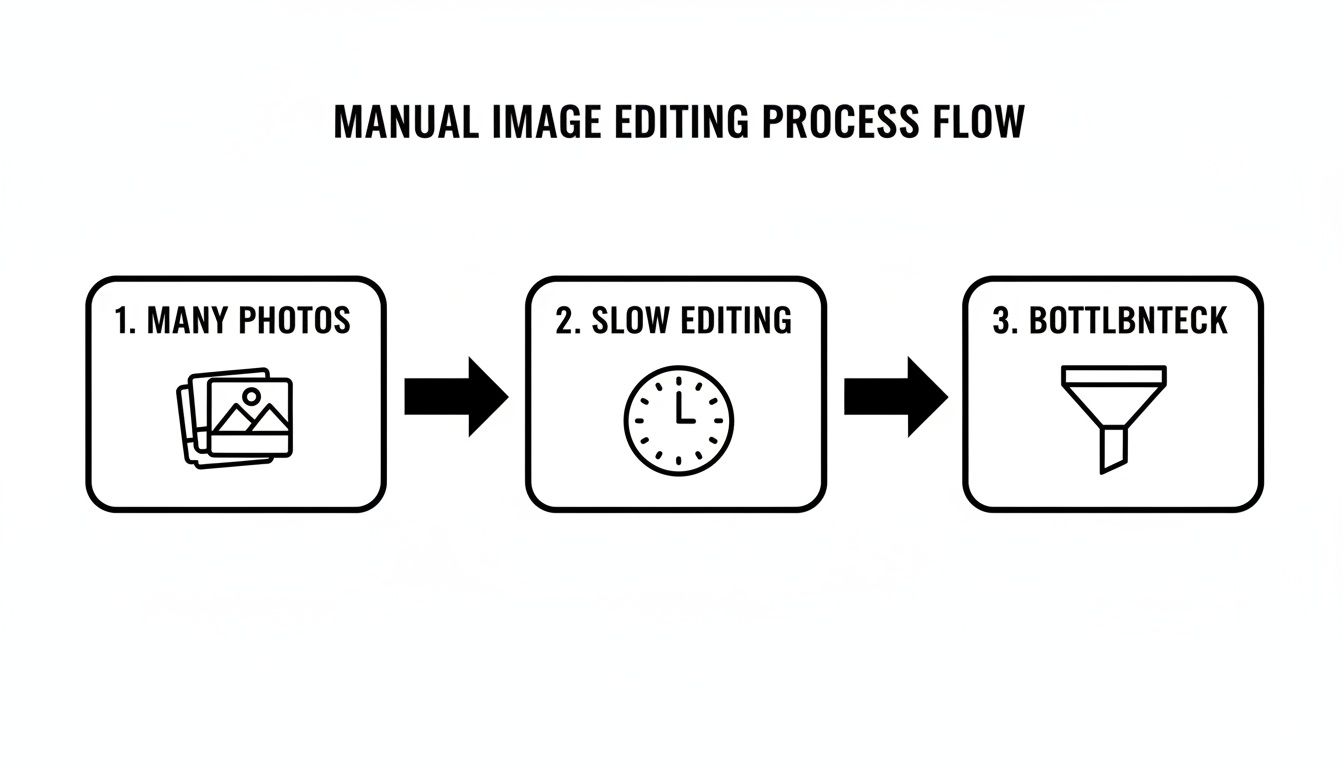
    Let's be honest: manual background removal is a huge bottleneck. A skilled designer might spend 5-10 minutes wrestling with a single complex image in Photoshop. That’s simply not an option for an e-commerce marketplace handling thousands of new product uploads every single day. An API, on the other hand, handles this instantly.

    Here's where it really makes a difference:

    • Slash Time-to-Market: Product photos can go from a photographer's camera to live on your website in minutes, not hours or days.
    • Guarantee Visual Consistency: Every single image is processed with the same high-quality algorithm, creating a polished, uniform look across your entire product catalog or social media feed.
    • Drive Down Operational Costs: The math is simple. Automating this work dramatically cuts the payroll hours required for manual photo editing, which hits the bottom line in a big way.

    The market is clearly moving in this direction. Global demand for these services is skyrocketing, with a projected market size of USD 1.47 billion by 2025. This explosive growth is fueled by businesses that are automating their image workflows to cut manual editing time by up to 45%, particularly in the e-commerce and digital content sectors. You can explore more of these industry trends over at 360iResearch.

    Key Takeaway: An API turns background removal from a manual, unpredictable chore into a scalable, automated component of your software infrastructure.

    A Clear Advantage Over Manual Work

    When you put an API head-to-head with manual editing, the advantages become crystal clear, especially when it comes to handling images at scale.

    To see the difference, let's break it down in a quick comparison.

    API Automation vs Manual Editing at a Glance

    Feature Remove Background API Manual Editing
    Speed Seconds per image 5-15 minutes per image
    Scalability Processes thousands of images concurrently Limited by the number of available editors
    Consistency Uniform results every time Quality can vary between editors and tasks
    Cost Low per-image cost, predictable pricing High hourly or per-image cost
    Availability 24/7, on-demand Limited by human work hours and availability
    Integration Seamlessly fits into existing workflows Requires a separate, disconnected process

    The bottom line is that a human editor's output is finite. An API, however, can process a flood of images simultaneously without breaking a sweat. This makes it an absolutely essential tool for any platform that depends on a high volume of visual content—from social networks moderating user uploads to marketing tools that generate dynamic ad creative on the fly.

    Making Your First API Call

    Laptop displaying code, coffee cup, smartphone, and plant on a desk with 'FIRST API CALL' text.

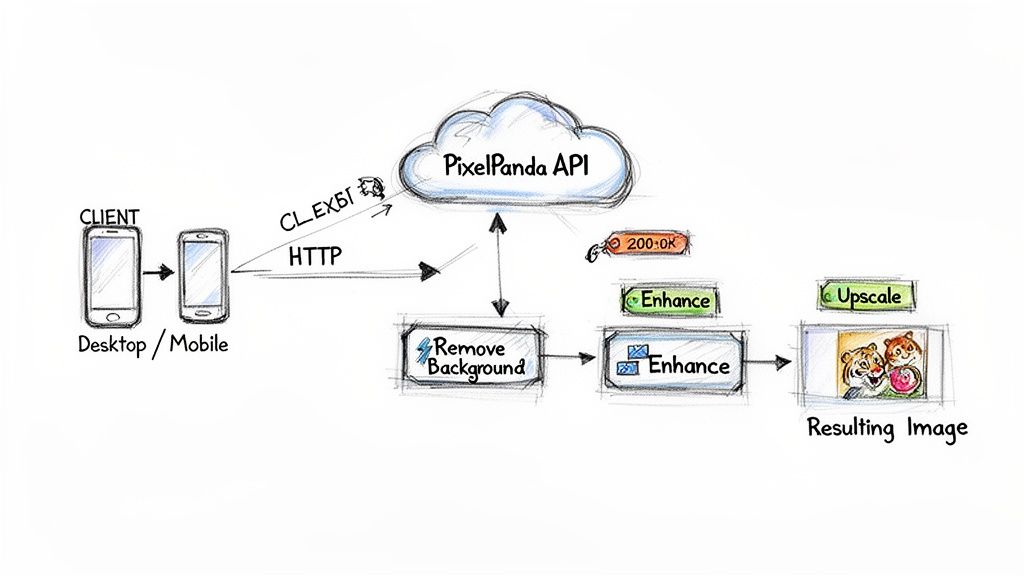
    Alright, let's get our hands dirty. Theory is great, but the real magic happens when you send that first request and see a perfectly processed image come back. It's surprisingly straightforward. At its core, every call you make will have the same three ingredients: your secret API key, the image you want to work on, and the right API endpoint.

    First things first, that API key is your golden ticket. Treat it like a password. Once you sign up for a service, you’ll usually find it sitting in your account dashboard.

    Crucial Tip: Never, ever hardcode your API key directly into your app. I've seen this mistake sink projects. The best practice is to store it as an environment variable (e.g., API_KEY). This keeps it out of your source code and safe from prying eyes if your code ends up in a public repository.

    Modern AI has made these tools incredibly fast—a good remove background API can chew through over 500 images per hour. This isn't just for big corporations anymore; this kind of speed makes automation a reality for small businesses and solo creators. In fact, North America now accounts for about 40% of the global market for this tech.

    Your First Test: A Simple cURL Request

    Before you even write a line of application code, the easiest way to kick the tires is with a simple cURL command right from your terminal. It’s my go-to method for quickly checking if my API key is working and getting a feel for the request structure without the overhead of a full script.

    You'll typically send a multipart/form-data payload. This just means your request will bundle up the image file along with any other parameters. Authentication is usually handled with a custom header, something like X-API-Key.

    Here’s a practical example using cURL:

    curl -X POST
    -H "X-API-Key: YOUR_API_KEY"
    -F "image_file=@/path/to/your/image.jpg"
    -o "processed-image.png"
    https://api.pixelpanda.ai/v1/remove-background

    This single line tells the API to grab your image, authenticate your key, do its thing, and save the result as processed-image.png on your machine. Pretty cool, right? For a deeper dive, the official PixelPanda developer documentation has language-specific examples and more advanced guides.

    Moving From a Test to Real Code

    Once you've confirmed everything works with cURL, it's time to bring that logic into your actual application.

    Python Example

    If you're a Python dev, you’re probably already familiar with the requests library. It makes sending HTTP requests feel almost trivial. The code is a direct translation of the cURL command, but now you can build logic around the response.

    import requests

    api_key = 'YOUR_API_KEY'
    image_path = '/path/to/your/image.jpg'

    response = requests.post(
    'https://api.pixelpanda.ai/v1/remove-background',
    files={'image_file': open(image_path, 'rb')},
    headers={'X-API-Key': api_key}
    )

    if response.status_code == 200:
    with open('processed-image.png', 'wb') as out:
    out.write(response.content)
    print("Background removed successfully!")
    else:
    print(f"Error: {response.status_code}")
    print(response.text)

    Pro Tip: I can't stress this enough: always check the response.status_code. A 200 OK means you're good to go. Anything in the 4xx or 5xx range means something went wrong, and your code needs to handle it gracefully instead of crashing.

    Node.js Example

    For those in the JavaScript world, Axios is a fantastic, promise-based client. The approach is similar, but you'll need a library like form-data to handle the multipart request properly, as Node.js works with file streams a bit differently.

    Fine-Tuning Your Cutouts for Tricky Images

    A simple API call is often all you need for a clean subject against a solid background. But real-world photos are rarely that simple. What about the fine wisps of hair on a portrait, the fluff of a wool sweater, or the subtle transparency of a wine glass? This is where the real power of a professional remove background API shines through—in the advanced parameters that give you precise control over the final result.

    Just uploading an image and hoping for the best won't cut it when you're aiming for pro-level quality. To get there, you need to use the optional parameters that let you nudge the AI in the right direction. Think of these as the manual controls on a high-end camera; they're what separate a decent snapshot from a breathtaking photograph.

    Getting Hair and Fur Just Right with Alpha Masks

    Let's be honest: hair and fur are the ultimate test for any background removal tool. A less sophisticated algorithm will often just chop these details off, leaving your subject with a harsh, blocky, and unnatural-looking outline. The solution? Requesting an alpha mask.

    An alpha mask isn't the final image itself, but rather a grayscale map of its transparency. Here's how it works:

    • White areas are 100% opaque—this is your main subject.
    • Black areas are 100% transparent—this is the background you're getting rid of.
    • Shades of gray represent semi-transparency, perfectly capturing the subtle gaps between individual strands of hair or fibers.

    Instead of just getting back a finished PNG, you can ask the API to send this mask as a separate file. This opens up a world of possibilities for designers and developers. You can use it in Adobe Photoshop or other editing software to create incredibly realistic composites. Those subtle gray values are the key to preserving every last detail, ensuring your subject blends perfectly into any new background.

    When you start working with alpha masks, you're moving beyond simple cutouts and into professional compositing. It’s the secret sauce for making your subjects look like they were actually in the scene, not just slapped on top of it.

    Dealing with Transparency and Refining Edges

    What about semi-transparent objects? Think of things like glassware, sheer fabrics, or even faint shadows you might want to keep. A basic background removal process can get confused, either making these areas solid or deleting them completely. This is where you need to check the API documentation for parameters that control how these tricky situations are handled.

    Services like PixelPanda give you options to refine the output directly in the API call, which can be a huge time-saver. For example, you can often add a new background color in the same step. Instead of downloading a transparent PNG and then adding a white layer behind it in a separate process, you can just tell the API to place the subject on a specific hex color (like #FFFFFF) and return the finished image.

    Look for other handy settings that can make a big difference:

    • Edge Feathering: Some APIs let you add a slight softening to the cutout's edge, which helps minimize any sharp or pixelated artifacts.
    • Output Format Control: You should be able to explicitly request a transparent PNG-24 to ensure the alpha channel data is preserved correctly.
    • Region of Interest: For busy photos where the AI might struggle to identify the main subject, some services let you provide coordinates to guide it.

    The best way to really grasp what these controls can do is to play around with them. A hands-on background removal demo is perfect for this. You can upload your own challenging images and tweak the settings to see the impact in real-time. Getting that practical feel for the controls is the fastest way to learn how to get the exact result you need for your project.

    Building an Automated Batch Processing Workflow

    The real magic of a remove background API isn't just cleaning up a single photo; it's when you scale that process to handle entire catalogs automatically. Let's be honest, manually uploading thousands of product photos is a nightmare. This is where a smart, automated workflow comes in, turning a mind-numbing task into a "set it and forget it" background process.

    When you're designing a system for batch processing, you have to think about scale right from the start. A simple script that zips through ten images might completely choke when you throw ten thousand at it. The trick is to pick the right approach based on how many images you have and how quickly you need them, finding a balance between speed and reliability.

    Synchronous vs Asynchronous Processing

    For small batches, a straightforward synchronous loop can work just fine. In this setup, your script sends an image to the API, waits for the processed version to come back, saves it, and then grabs the next one. It's simple to write and even simpler to debug because everything happens in a neat, predictable line.

    But when you're dealing with a massive product catalog, that synchronous method becomes a serious bottleneck. An AI model can take a few seconds to process a high-res image, and waiting for each one to finish sequentially is painfully slow. A far better way to handle large volumes is to go asynchronous using webhooks.

    This is the basic idea: you automate the transformation from a raw input into a polished output, and that cycle becomes incredibly powerful when you repeat it thousands of times.

    Process diagram showing an original image input, a fine-tuning step, and a final star result.

    Designing a Scalable Asynchronous Workflow

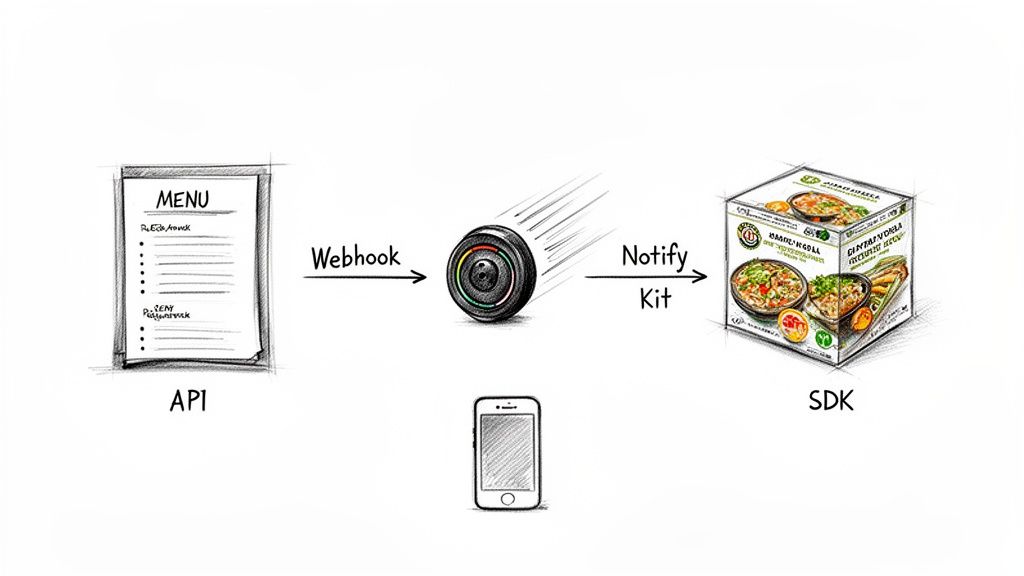
    With an asynchronous setup, you don't hang around waiting for the API. Instead, you send your image along with a callback URL—your webhook endpoint. Your application can then fire off hundreds of requests one after another without getting bogged down. As soon as the API finishes an image, it sends the result to your URL, which triggers your code to save the file.

    This approach is a total game-changer for a few key reasons:

    • Efficiency: Your server isn’t stuck in a waiting game. It’s free to handle other tasks while the API crunches the pixels.
    • Scalability: You can submit a huge queue of jobs without maxing out your own system's resources.
    • Reliability: By separating the request from the response, the whole system becomes more resilient to network hiccups or temporary API slowdowns.

    Asynchronous workflows are absolutely essential for any serious, large-scale integration. They prevent server timeouts and create a much better user experience because your app isn’t frozen while a long process runs in the background.

    Practical Tips for Batch Processing

    Building a truly reliable batch script is about more than just looping through a folder. You have to anticipate real-world problems, like hitting API limits or dealing with corrupted files.

    A classic mistake is blowing past the API's rate limits. Most services cap how many requests you can send per minute. If you just hammer the server with everything at once, you’ll start getting 429 Too Many Requests errors. The professional way to handle this is with an exponential backoff strategy. If a request gets a 429 error, your code should pause for a second, then try again. If it fails a second time, it should double the wait time, and so on.

    Finally, your script needs rock-solid error handling. What if it finds a corrupted image? A brittle script will just crash, stopping the entire batch. A much smarter approach is to wrap each API call in a try...except block (or your language's equivalent). If something goes wrong, you log the problematic filename and the error, then gracefully move on to the next image. This simple step ensures that one bad apple doesn’t spoil the whole batch.

    Putting the API to Work in Real Scenarios

    Connecting code to a real-world product is where a remove background API really shows its true value. It’s not just about running a script—it's about building features that solve genuine business problems. Let’s walk through a couple of common scenarios to see how this kind of integration becomes a fundamental part of an application's core functionality.

    These examples aren't just hypotheticals; they're the kind of features that are driving massive growth in this space. The market for these tools is on track to hit USD 4.7 billion by 2033, which tells you everything you need to know about their importance in e-commerce, marketing, and beyond. This trend is all about giving developers the power to build seamless, on-the-fly editing tools right into their products. You can read the full research on background removal market trends if you want to dive deeper into the numbers.

    E-commerce Product Catalog Standardization

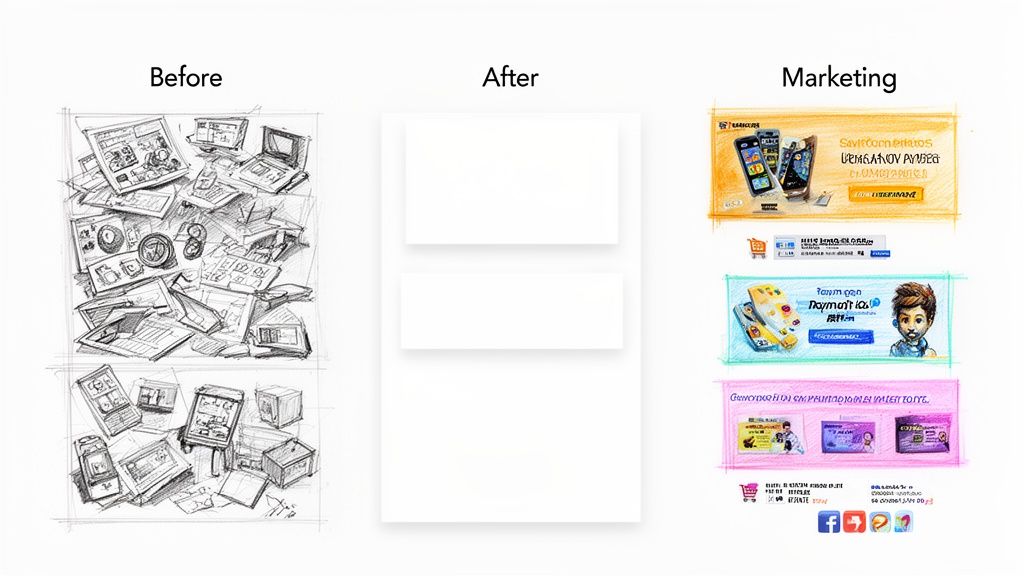
    Picture this: you're running a marketplace where hundreds of vendors upload product photos every day. The results are a mixed bag. Some images have clean, white backgrounds, but others look like they were taken on a cluttered desk. That kind of inconsistency just looks unprofessional and can kill your conversion rates. The only way to fix this at scale is with an automated workflow.

    Here’s how that process typically looks in the real world:

    1. A vendor uploads a new product image to your storage, maybe an Amazon S3 bucket.
    2. That upload event automatically triggers a serverless function, like an AWS Lambda.
    3. The function grabs the new image and sends it off to the remove background API.
    4. A few seconds later, the API sends back a clean, transparent PNG of just the product.
    5. Your function can then composite this cutout onto a standardized background—say, a clean white or light gray canvas.
    6. Finally, this new, polished image is saved, and the product catalog is updated.

    The whole thing happens in a flash, ensuring every single product on your site looks professional and uniform without anyone lifting a finger. If you want to get even better results, you can chain this process with other API calls, like using a tool for image upscaling to enhance resolution before you even send it for background removal.

    By automating this workflow, you turn a chaotic stream of user-generated content into a professional, visually consistent catalog. It's a huge step up in quality control that directly builds user trust and boosts sales.

    Dynamic Marketing Asset Generator

    Let's switch gears to a social media marketing tool. A great feature would be to let users instantly create branded profile banners. The idea is simple: the user uploads their headshot, and your tool seamlessly places it onto a branded template. Doing this manually for every user would be a non-starter.

    This is where the API becomes the engine for your feature:

    • User Action: A user uploads their profile picture through your web app.
    • API Call: Your frontend sends the image to your backend, which immediately forwards it to the remove background API.
    • Compositing: As soon as the transparent cutout of the headshot comes back, your backend programmatically overlays it onto a pre-designed banner template.
    • Final Output: The finished, perfectly branded banner is sent back to the user, ready for them to download and use.

    This kind of workflow transforms a complicated design task into a simple, two-click process for your users. It adds incredible value and makes for a fantastic user experience.

    Answering Your Top Questions About Background Removal APIs

    Whenever you're plugging a new service into your stack, you're bound to have questions. Getting those answers early can save you a ton of headaches and help you build a more solid application right from the start. Let's tackle some of the most common things developers ask when they start working with a remove background API.

    So, What's This Going to Cost Me?

    Most services these days run on a flexible, pay-as-you-go model. You'll typically buy a pack of credits, and the cost per image drops pretty dramatically as your volume goes up. We're talking anywhere from a few cents per image for smaller batches all the way down to a fraction of a cent if you're processing at an enterprise scale.

    Just about every provider also gives you a free tier with a monthly batch of credits. This is your best friend for development, testing out new ideas, and handling low-volume tasks without having to pull out a credit card.

    My Takeaway: This tiered pricing is great because it makes these powerful APIs accessible to everyone, from a developer working on a weekend project to a massive e-commerce site churning through thousands of product photos every day.

    What Kind of Images Can I Actually Use?

    You can bet on universal support for the big three: JPG, PNG, and WEBP. Where you need to pay attention is resolution. To keep processing snappy, most APIs have a ceiling, which usually hovers around 25 megapixels (think an image that's 6250×4000 pixels).

    I can't stress this enough: always check the official documentation for the API you choose. Sending an image that's too big is one of the most common reasons for a failed request. Also, keep an eye out for how they bill—some services will charge you more credits for those high-res images, which is definitely something to factor into your budget.

    How Should I Handle Errors When the API Acts Up?

    Building solid error handling into your code isn't optional, especially for a production app. You have to assume things will go wrong and be ready to catch common HTTP status codes.

    Here’s a quick cheat sheet based on what I see most often:

    • 403 Forbidden: Nine times out of ten, this means your API key is wrong or has been deactivated. First step is always to double-check your credentials.
    • 400 Bad Request: This usually points to a problem with the image file itself. It might be corrupted, in a format the API doesn't support, or you simply forgot to include it in the request.
    • 429 Too Many Requests: You've hit your rate limit. The standard pro move here is to implement an exponential backoff strategy—basically, just wait a moment before trying again, and increase that wait time if it keeps failing.

    Ready to stop wrestling with manual edits and start automating your image workflows? Try PixelPanda for free and see how our developer-friendly API can deliver studio-quality results in seconds. Get your free API key and start building today.

  • How to Remove Watermarks From Photos The Right Way

    How to Remove Watermarks From Photos The Right Way

    Let's be clear from the start: learning how to get rid of a watermark isn't about stealing images. It's a practical skill for anyone who manages digital assets professionally. When you have the legal right to an image, cleaning it up is often just part of the job.

    Why and When You'd Need to Remove a Watermark

    Think about real-world situations. Maybe you're a marketer who bought a stock photo but only have the watermarked preview to work with for a quick mockup. Or perhaps you're an ecommerce manager, and your supplier's product shots are all stamped with their logo.

    In these cases, removing the watermark is a legitimate step. The end goal is to present a clean, professional image that fits your own brand, not someone else's.

    Legitimate Reasons for Removal

    So, when is it okay to remove a watermark? There are a few common scenarios that fall squarely within ethical and legal boundaries.

    • You own the photo outright. This is the most straightforward case. You might need to remove a pesky date stamp your old camera automatically added or a logo from a mobile app you used for a quick edit. It’s your photo, your rules.
    • You've lost the original file. It happens to the best of us. Your company might have a branded graphic from years ago, but the original, clean version is long gone. All that’s left is a watermarked copy, and you need it for a new project.
    • You’ve licensed the image. When you purchase a license from a stock photo site, you're paying for the right to use the clean, high-res version. If you only have the watermarked "comp" file on hand, removing the mark is simply part of getting your project ready.
    • You have explicit permission. The photographer or creator might have given you direct, written permission to use their work without the watermark for a specific campaign or purpose.

    The demand for clean, professional imagery is massive, which is why the global market for watermark removal software is expected to hit $500 million by 2025. This isn't a niche problem; it's a widespread need in marketing and ecommerce. You can dig into more of the data on this trend in research from Market Report Analytics.

    The rule of thumb is simple: if you have the rights to the image, you have the freedom to edit it. If you don't, you're crossing a line into copyright infringement.

    This guide is for those legitimate situations. We’ll cover everything from the hands-on control of Photoshop’s Clone Stamp tool to the almost-magical speed of modern AI platforms. My goal is to give you the skills to handle these tasks correctly, so you can produce high-quality work while respecting intellectual property. It’s about empowerment, not infringement.

    Getting Your Hands Dirty: Manual Removal in Photoshop and GIMP

    While AI tools are great for speed, there are times when you need surgical precision. That's where manual techniques in programs like Adobe Photoshop or its free cousin, GIMP, really shine. When a watermark is slapped over a complex detail—like a face, an intricate pattern, or a tricky texture—an AI can sometimes leave behind a blurry, slightly "off" artifact. Going manual gives you the control to make the edit truly invisible.

    Think of it less as a rigid, step-by-step process and more like an art. The goal is to understand a few core tools and adapt your approach to the photo in front of you. You're aiming for a seamless repair that perfectly preserves the original lighting and texture.

    First, a quick but important reminder: this kind of work should only be done on images you have the rights to. Whether you've purchased a license, own the photo, or are restoring a file where you've lost the original, always make sure you're on solid ethical ground.

    A flowchart demonstrating the ethical process of removing watermarks by obtaining a purchased license.

    Picking the Right Tool for the Job

    Your first stop in Photoshop will often be the Content-Aware Fill. It’s incredibly smart. You just select the watermark, and the software analyzes the surrounding pixels to generate a patch. This thing works magic on simpler backgrounds—think clear skies, open water, or a plain studio backdrop.

    But when a watermark crosses over multiple textures or sharp architectural lines, you need to roll up your sleeves and grab the classic tools. They give you far more control.

    • The Clone Stamp Tool is your precision instrument. You define a source point and literally "paint" with a copy of that area. It's perfect for rebuilding defined patterns, straight edges, or anything where you need an exact duplicate of another part of the image.
    • The Healing Brush Tool is a bit more sophisticated. It also samples from a source point, but it intelligently blends the texture, lighting, and color of your sample with the area you're painting over. This makes it the go-to for organic surfaces like skin, fabric, or wood grain, giving you a much more natural-looking fix.

    Here's a pro tip that makes all the difference: constantly re-sample your source point. If you keep picking new source pixels close to where you're working, you’ll maintain the subtle shifts in lighting and texture. This is how you avoid those repetitive, blotchy patterns that are a dead giveaway of a clumsy edit.

    How to Make Your Edits Invisible

    Just grabbing the right tool isn’t enough. The settings you use are what separate an amateur edit from a professional one. You've probably seen bad edits before—they often have harsh, obvious brush strokes. A good edit, on the other hand, is built up in subtle layers.

    First, adjust your brush. A soft-edged brush with 0% hardness is almost always the right call. It feathers the edges of your work, creating a smooth, undetectable transition between your fix and the original photo.

    Even more important is to lower your brush's Opacity or Flow down to around 20-30%. This is a game-changer. Instead of trying to cover the watermark in one heavy-handed stroke, you build up the repair with gentle layers. It gives you incredible control over the final blend and feels more like painting than patching.

    Always Work Non-Destructively with Layers

    This is probably the single most important habit you can develop in photo editing: never work directly on your original image. Always, always create a new, blank layer on top of it first.

    From there, when you select the Clone Stamp or Healing Brush, look for the "Sample" option in the top toolbar. Change it to "Current & Below" or "All Layers." This setting tells the tool to borrow pixels from the original image below, but to apply your changes only to the new, empty layer you created.

    This workflow is the foundation of professional editing for two huge reasons:

    1. It’s Forgiving: Make a mistake? No problem. You can just erase that section of your new layer without ever touching the original photo.
    2. It’s Flexible: You can lower the opacity of your entire repair layer to tone it down, or just delete it and start over. Your original image remains completely untouched and safe.

    This layered approach protects your asset and gives you the freedom to experiment until the result is absolutely flawless. By combining the right tool with subtle brushwork and a non-destructive workflow, you can tackle even the most stubborn watermarks and get a clean, professional-looking image every time.

    Using AI Tools for Fast and Automated Removal

    When you're short on time or the manual approach just isn't cutting it, AI-powered tools are a game-changer. Forget painstakingly cloning pixels one by one. These platforms use smart algorithms to analyze and completely rebuild the area under a watermark, often getting the job done in seconds. For anyone handling images in bulk, this is a massive time-saver.

    A silver laptop on a wooden desk displays an 'AI tools' interface with a grid of diverse images.

    The tech behind this magic is called inpainting. The AI model has been trained on millions of images, so it understands textures, patterns, and light. When you mark a watermark for removal, the AI doesn't just guess what’s underneath—it intelligently generates new pixels that perfectly match the surrounding context, making the fix look completely natural.

    This is especially clutch for tricky backgrounds that would give you a headache in Photoshop. Think about taking a logo off a patterned shirt, a brick wall, or a field of grass. The AI recreates these organic textures flawlessly.

    AI Inpainting: The Good and The Bad

    The real strength of AI lies in its ability to understand context. It’s not just a fancy blur tool. An inpainting algorithm knows the difference between sky, skin, and fabric, filling the gap with a texture that actually makes sense. The result is a clean patch that blends right in.

    But the technology is in a constant cat-and-mouse game with more advanced protection methods. The global AI watermarking market was valued at $427.2 million in 2024 and is expected to rocket to $3.07 billion by 2033, according to Grand View Research. This growth is fueled by the need to fight deepfakes and protect intellectual property.

    Innovations like Google's SynthID, which embeds an invisible watermark directly into an image's pixels, are a serious challenge for typical removal software. It means that while today's AI tools are incredibly good, they're always playing catch-up to the next big thing in watermarking.

    Top AI Platforms for Watermark Removal

    A few platforms have really nailed user-friendly watermark removal. The process is usually dead simple: upload your image, paint over the watermark with a brush tool, and let the AI do its thing.

    • Cleanup.pictures My go-to for quick, one-off fixes. Its free tier is generous, and it’s incredibly effective on simple to moderately complex watermarks.
    • Fotor This is more of an all-in-one photo editor that happens to have a very reliable watermark remover. A great choice if you need other editing tools too.
    • PixelPanda For more advanced needs, especially with text-based watermarks or objects, our platform offers a seriously powerful solution. You can even try our text removal demo to see how well it cleans up images by intelligently rebuilding the background.

    The biggest win with a dedicated AI tool is the sheer lack of effort. A task that could take 15 minutes of careful clicking in Photoshop is often done in under 30 seconds. For busy professionals, that’s huge.

    Deciding between a manual editor and an AI tool often comes down to your specific needs. Here's a quick breakdown to help you choose the right path.

    Comparing Manual vs AI Watermark Removal Methods

    Factor Manual Methods (Photoshop, GIMP) AI Tools & APIs
    Speed Slow and methodical; can take several minutes per image. Extremely fast; often just a few seconds per image.
    Skill Level Requires patience and technical skill, especially with complex backgrounds. Beginner-friendly; very little skill needed for great results.
    Precision Offers the highest level of control for pixel-perfect edits. Fully automated; control is limited to selecting the area.
    Batch Processing Impractical for large volumes; each image must be edited individually. Ideal for scale; APIs allow for thousands of images to be processed automatically.
    Consistency Results can vary depending on the editor's skill and effort. Highly consistent results across all images.
    Cost Professional software has subscription fees; GIMP is free but has a steep learning curve. Often subscription-based or pay-per-use, but with free tiers available.

    Ultimately, AI tools excel at speed and convenience, while manual methods still hold the crown for absolute creative control.

    Scaling Up with Watermark Removal APIs

    For businesses and developers, the real magic of AI is unlocked through an Application Programming Interface (API). Instead of processing images one by one on a website, an API lets you plug watermark removal directly into your own apps, websites, or internal workflows.

    Picture this: you're an ecommerce manager getting thousands of product photos from suppliers, and they all have different watermarks. Editing each one manually is out of the question.

    With a watermark removal API, you can build a system that automatically:

    1. Ingests a new product image.
    2. Sends it to the AI service to remove the watermark.
    3. Receives the cleaned-up image.
    4. Pushes the clean version live to your product listings.

    This kind of automated pipeline saves an incredible number of hours and keeps your branding consistent. Developers can integrate this with just a few lines of code, turning a mind-numbing manual task into an efficient, hands-off operation. This is exactly how modern businesses manage visual content at scale.

    Navigating Copyright and Ethical Boundaries

    Before you even think about touching a pixel, we need to talk about the legal and ethical side of things. It’s a big deal. A watermark isn't just some annoying graphic layered on a picture; it’s a digital signature that says, "I made this, and it belongs to me." Removing it without permission isn't just a simple edit—it’s copyright infringement.

    This guide is written for professionals who are working with images they have every right to modify. The techniques we'll cover are for legitimate business needs, not for swiping someone else's hard work.

    When Is It Okay to Remove a Watermark?

    Knowing where the line is drawn protects you, your company, and the creative community. The rules are actually pretty clear, and you're generally safe to remove a watermark in a few specific situations.

    • You Own the Image Outright: If you took the photo or designed the graphic yourself, it’s your property. Go ahead and get rid of that old camera date stamp or the logo your editing app accidentally added.
    • You've Purchased a License: When you buy a stock photo, you're paying for the right to use the clean, high-resolution version. Removing the watermark from the "comp" or preview image is exactly what you're supposed to do.
    • The Original File Is Lost: It happens more than you'd think. A company misplaces the original, un-watermarked version of its own logo or a key marketing image. In this case, restoring the asset is a perfectly valid business need.
    • You Have Explicit Written Permission: Sometimes a creator or copyright holder will give you direct permission to use their image without the watermark for a specific project. Just make sure you get it in writing.

    Anything outside of these scenarios is a minefield. Grabbing a watermarked photo from a photographer's portfolio or a stock site's preview without paying is illegal. It also directly hurts the creator’s ability to earn a living.

    The bottom line is simple: If you don't have clear, documented rights to an image, leave the watermark alone. The potential legal fallout and reputational damage just aren't worth it.

    The Real Risks of Unauthorized Removal

    Ignoring copyright law has very real consequences. Creators and stock photo agencies use sophisticated image recognition tools to hunt down unauthorized uses of their work across the internet. It's not a matter of if you'll get caught, but when.

    If they find you, your company could be hit with a demand for licensing fees that are way higher than the original cost. Even worse, you could be facing a lawsuit. The financial penalties can be steep, but the hit to your professional credibility can be permanent. A reputation for misusing creative work is incredibly hard to shake.

    For a full breakdown of your responsibilities when using our service, please review the guidelines in our PixelPanda Terms of Service.

    Watermarks Are Getting Smarter

    The push to protect creative work is driving some serious innovation. The global digital watermarking market was valued at $1.45 billion in 2024 and is expected to hit $3.8 billion by 2033. That explosive growth, which you can read more about in this market report from Grand View Research, shows just how serious creators are about protecting their intellectual property.

    We're moving way beyond just a visible logo in the corner. New techniques embed invisible data directly into an image's pixels. These "forensic" watermarks are designed to survive cropping, compression, and even minor edits, making it easier than ever to trace an image back to its source.

    This evolving technology just reinforces why it's so important to work ethically from the get-go. Making the right choice protects everyone in the long run.

    Don't Let Watermark Removal Ruin Your Photos

    Getting a watermark off an image is one thing. Doing it so cleanly that nobody can tell it was ever there? That’s the real goal. A botched removal can leave behind artifacts, blurs, or weird color patches, making the final image look worse than the original.

    The secret to a professional-grade edit isn't just about the tool you use; it's about the entire workflow. Let's walk through how to keep your photos looking pristine from start to finish.

    A tablet displays a stunning canyon landscape with a winding river and mountains, featuring the text 'Preserve Quality'.

    It all starts with your source file. Seriously. If you begin with a low-resolution, heavily compressed JPEG, you're already at a disadvantage. Every edit you make and every time you re-save the file, you’re just adding more compression and losing more detail, which quickly leads to a blurry, blocky mess.

    So, rule number one: always, always start with the highest-resolution file you can get your hands on. If you’re downloading a licensed stock photo, grab the largest version available. This gives you the maximum amount of pixel data to work with, making your edits far cleaner and more convincing.

    Work Smarter, Not Harder: Use Non-Destructive Layers

    As we touched on earlier, this is probably the most critical habit to develop. Never apply edits directly to your original image layer. That's the digital equivalent of working in permanent ink—one slip-up and your original photo is damaged.

    Instead, get in the habit of creating a new, blank layer right on top of your photo. Do all your cloning, healing, and patching on this separate layer. It feels like an extra step at first, but it saves so much time and frustration.

    By keeping your fixes on a separate layer, you can easily dial back the opacity of your repair, mask out parts that don't look right, or just delete the layer and start over without ever harming the original photo. It’s the cornerstone of professional editing.

    Troubleshooting Common Quality Glitches

    Even when you do everything right, you can still run into annoying problems. You might see a faint "ghost" of the old watermark, the colors in the patched area might not quite match, or you might lose the natural texture of the image.

    Don't worry, these are common hurdles, and each has a fix.

    • Problem: The spot you edited looks too smooth and artificial, losing the original grain.

    • Fix: This is an easy one. Create a new layer, fill it with 50% gray, and change its blend mode to "Overlay." Now, go to Filter > Noise > Add Noise. Add a tiny amount of monochromatic noise to create a subtle grain, then use a layer mask to paint it only over your repaired area. This little trick instantly restores a natural-looking texture.

    • Problem: You can still see a faint outline or "ghost" of the watermark.

    • Fix: This usually happens because the watermark changed the brightness or contrast of the pixels underneath it. The solution is to use the Dodge and Burn tools. Set them to work on a new 50% gray layer in "Overlay" mode, and gently paint over the area to brighten or darken it until the ghosting vanishes.

    Nailing Advanced Texture and Color Matching

    When a watermark sits on top of a complex texture—like wood grain, fabric, or skin—the standard tools might not be enough. This is where a pro technique called frequency separation comes in. It splits your image into two layers: one for color and tone (low frequency) and another for fine details and texture (high frequency).

    This separation is incredibly powerful. It lets you smooth out color blotches without destroying the delicate texture, and vice versa. You can rebuild the texture layer with the Clone Stamp tool with surgical precision, ensuring a completely seamless result.

    Color matching is the other piece of the puzzle. Sometimes, a Content-Aware Fill leaves a patch that's just a slightly different shade.

    • Quick Fix: Add a "Hue/Saturation" adjustment layer and clip it directly to your repair layer. Now you can gently tweak the sliders until the patch blends in perfectly with the surrounding colors.
    • Pro Method: For more control, use a "Curves" or "Color Balance" adjustment layer. This gives you granular control over the reds, greens, and blues in the different tonal ranges of the image.

    Finally, if your source image was a bit lower resolution to begin with, you can give it a final boost with an AI upscaler. These tools can intelligently add detail and increase pixel density after your edits are done, giving you a much sharper, higher-quality final product. You can see what's possible with our AI-powered image upscaling demo and how it can transform your edited photos.

    Clearing Up Your Watermark Removal Questions

    Even when you have a good workflow, some questions are bound to pop up. Let's tackle the most common ones I hear, covering everything from the legal stuff to dealing with those tricky technical issues.

    Is It Actually Illegal to Remove a Watermark?

    This is the big one, and the answer is refreshingly straightforward: it's only illegal if you don't own the rights to the image. That's the golden rule.

    • When you're in the clear: You can absolutely remove watermarks from your own photos, from stock images you’ve properly licensed, or any asset where the creator gave you the green light.
    • When you're crossing the line: Scrubbing a watermark from a stock photo preview to avoid paying for it, or lifting a photographer's work from their portfolio, is straight-up copyright infringement.

    Think of a watermark as the creator's signature. Messing with it on an image you don't have rights to is not just bad form—it's illegal and hurts the people who create the content we all rely on.

    Which Removal Method Should I Use?

    There's no single "best" tool for every job. The real choice comes down to speed versus control—do you need it done fast, or do you need it done perfectly?

    • Go with AI tools when: Speed is everything. If you're clearing dozens of images for an e-commerce site or just need a quick fix without diving into complex software, AI is your best friend.
    • Stick with manual editing when: The watermark sits on something incredibly detailed, like a person's face or a fine-textured fabric. You'll also want to go manual if you need absolute pixel-perfect quality for high-resolution print work or if an AI tool left a few subtle blemishes.

    My rule of thumb? For about 90% of cases, a quality AI tool gets the job done beautifully in seconds. I only break out Photoshop for that last 10% where every single pixel counts.

    Will Removing the Watermark Ruin My Photo's Quality?

    It's a valid concern, but thankfully, modern tools are smart enough to avoid this. A good AI watermark remover doesn't just smudge the area. It uses sophisticated inpainting technology to analyze the surrounding pixels and intelligently rebuild what was underneath the mark.

    But to get the best results, you need to set it up for success:

    • Start with a high-res image. You can't add detail that isn't there. Editing a blurry, low-quality photo will only make its flaws more obvious.
    • Consider the watermark itself. A simple, semi-transparent logo on a plain background is a breeze to remove. A huge, solid-color watermark slapped over a complex pattern is a much tougher challenge for any tool.

    The goal is always a clean, seamless edit. With the right starting image and a good tool, you can get a result where no one would ever know a watermark was there.

    What if the AI Tool Isn't Quite Perfect?

    Even the best AI can stumble, especially on super busy backgrounds. You might occasionally see a small, blurry patch or a subtle artifact where the watermark used to be. Don't sweat it—this is where a simple two-step process comes in handy.

    Let the AI tool do 95% of the work in an instant. Then, just pop that image into a free editor like GIMP or a pro tool like Adobe Photoshop for a quick touch-up. A few clicks with the Clone Stamp or Healing Brush is usually all it takes to fix those tiny imperfections. You get a perfect image with a fraction of the manual effort.


    Ready to automate your image editing and get studio-quality results without the manual work? PixelPanda offers powerful, developer-friendly APIs for watermark removal, background removal, and much more. Try our free demos and see the difference.

  • image upscaling software: Top picks for 2025

    image upscaling software: Top picks for 2025

    In today's visually driven world, a low-resolution image can weaken marketing campaigns, compromise print quality, and undermine user experience. Traditional resizing methods simply stretch pixels, resulting in blurry, artifact-laden images. The solution lies in AI-powered image upscaling software, which intelligently reconstructs and enhances images, adding realistic detail to create crisp, high-resolution results.

    But with a crowded market of desktop apps, web-based tools, and developer APIs, choosing the right solution is critical. This guide cuts through the noise. We have analyzed the 12 best options, from dedicated tools for photographers like Topaz Gigapixel to scalable APIs like Upscale.media, to help you find the perfect software for your specific needs. Whether you're a developer integrating automated enhancements, a marketer preparing assets for high-resolution displays, or a designer restoring vintage photos, this resource is for you.

    This listicle provides an in-depth comparison of each platform's core features, performance, pricing, and ideal use cases. You'll find a clear breakdown of everything from upscaling factors and specialized AI models to API support and integration workflows. Each entry includes direct links and key screenshots to help you quickly evaluate which image upscaling software aligns with your technical requirements and creative goals. We skip the generic marketing copy and focus on practical analysis, so you can make an informed decision and get straight to producing superior, high-resolution visuals.

    1. PixelPanda

    PixelPanda establishes itself as a powerful, developer-first AI imaging platform, moving beyond simple enlargement to offer a complete, automated visual production pipeline. It's designed for engineering teams, e-commerce platforms, and marketers who require consistent, studio-quality results at scale. This service distinguishes itself by integrating multiple AI processes into a single API-driven workflow, making it an exceptional piece of image upscaling software for automated environments.

    The platform combines 4x upscaling with a suite of essential editing tools like background removal, smart inpainting, and text/watermark cleanup. What makes PixelPanda a standout choice is its precision in handling complex subjects. Its depth-aware and edge-preserving models excel at processing challenging details like hair and fur, significantly reducing the need for manual retouching that often plagues automated systems. For developers, this translates to more reliable, production-ready assets straight from the API.

    PixelPanda

    Key Features and Use Cases

    PixelPanda’s toolkit is engineered for high-volume, automated workflows where quality and speed are critical.

    • Integrated AI Toolkit: Beyond its core 4x upscaling, the platform offers face enhancement, content-aware fills, and style transfer. This unified approach allows teams to build complex image processing sequences without chaining together multiple, disparate services.
    • Developer-Centric Design: With a straightforward REST API, SDKs for major programming languages, and comprehensive documentation, integration is streamlined. The system supports reliable batch processing, making it ideal for large-scale operations like updating entire product catalogs or processing user-generated content in real-time.
    • Superior Edge Detection: The platform's ability to accurately isolate subjects with intricate edges (like flyaway hair or fuzzy textiles) and export them as clean, transparent PNGs is a significant advantage for e-commerce and marketing applications.
    • Practical Evaluation: A generous free trial is available without requiring a credit card, complemented by a hands-on demos gallery. This lets technical teams thoroughly vet the API's performance and output quality before any financial commitment.

    Platform Analysis

    PixelPanda is best suited for businesses that need to embed high-quality image processing directly into their applications or internal systems. While it is primarily API-driven, its power lies in enabling non-technical users (like marketers) to benefit from advanced AI editing through integrated tools.

    However, the platform is less ideal for casual users seeking a simple, one-off upscaling tool via a web interface. Its strength is in programmatic control and automation. Additionally, while pricing details are transparent, they are located on a dedicated page rather than the main product page, requiring an extra click to evaluate costs.

    Website: https://pixelpanda.ai

    2. Topaz Gigapixel (Topaz Labs)

    Often hailed as the gold standard in professional photography and design circles, Topaz Gigapixel is a dedicated desktop application (with plugin support) focused exclusively on high-fidelity image upscaling. It stands out by providing an unparalleled level of control through its specialized AI models, allowing users to select algorithms tailored to specific content types like CGI, text, or low-resolution sources. This granular approach makes it a premier choice for tasks requiring maximum detail preservation, such as preparing old photos for large-format printing or restoring compressed digital assets.

    Topaz Gigapixel (Topaz Labs)

    The software operates as a standalone app for macOS and Windows but also integrates seamlessly as a plugin for Adobe Photoshop and Lightroom, fitting directly into established creative workflows. A key feature is its optional cloud rendering, which offloads heavy processing jobs from your local machine, significantly speeding up batch processing or work on less powerful hardware. You can see how its output compares against others in this image upscaling software demonstration.

    Key Features & Considerations

    • Specialized AI Models: Users can choose from models like Standard, High Fidelity, Art & CG, and Face Recovery to achieve optimal results for different image types.
    • Enlargement Factor: Natively supports up to 6× enlargement, with advanced cloud models for more challenging enlargements.
    • Workflow Integration: Functions as both a standalone application and a plugin for Adobe Creative Cloud products.
    • Pricing Model: Operates on a subscription model which provides access to updates and support. This can be a drawback for hobbyists or infrequent users, but is often justified for professionals who rely on its consistent, high-quality output.

    Topaz Gigapixel is best suited for professionals who need the absolute best quality and control over the upscaling process, making it an essential tool for photographers, print designers, and digital artists.

    3. Topaz Photo AI (Topaz Labs)

    Positioned as an intelligent all-in-one photo enhancement suite, Topaz Photo AI bundles the core technologies of Gigapixel AI, DeNoise AI, and Sharpen AI into a single, streamlined workflow. Instead of being just an image upscaling software, it uses its "Autopilot" feature to analyze an image and automatically apply the necessary noise reduction, sharpening, and upscaling in the optimal order. This integrated approach is ideal for photographers and creatives looking to simplify their post-processing pipeline by consolidating multiple tools into one powerful application.

    Topaz Photo AI (Topaz Labs)

    While Autopilot offers a convenient one-click solution, users retain full manual control over every adjustment, allowing for fine-tuning of each enhancement module, including resolution upscaling. This makes it a versatile tool for both quick batch processing and detailed, single-image work. The software operates as a standalone desktop application for Windows and macOS and also functions as a plugin for Adobe Lightroom Classic and Photoshop, ensuring it fits into existing professional workflows.

    Key Features & Considerations

    • Integrated Workflow: Combines industry-leading upscaling, denoising, and sharpening into a single, cohesive interface.
    • Autopilot AI: Automatically detects image quality issues and suggests optimal settings, significantly speeding up editing time.
    • Batch Processing: Efficiently apply consistent enhancements and upscaling across large sets of photos with minimal intervention.
    • Pricing Model: Typically purchased with a one-time payment that includes one year of updates. After the first year, an optional renewal is required to receive new features and model improvements. This can be less cost-effective if only upscaling is needed.

    Topaz Photo AI is best for users who require a comprehensive image quality toolkit, not just enlargement. It excels in environments where correcting noise, softness, and resolution in a single step is a priority.

    4. Adobe Photoshop / Lightroom Classic Super Resolution

    For professionals and enthusiasts already invested in the Adobe ecosystem, the built-in Super Resolution feature offers a streamlined, one-click solution for image upscaling. Integrated directly into Adobe Camera Raw (ACR), Photoshop, and Lightroom Classic, it is not a standalone tool but a powerful function within an existing workflow. Its primary strength lies in its RAW-aware processing, allowing it to leverage the original sensor data to double the linear resolution (quadrupling the total pixel count) with impressive detail and minimal artifacts. This makes it an ideal choice for photographers needing to make tight crops or prepare images for large-scale printing without leaving their primary editing environment.

    Adobe Photoshop / Lightroom Classic Super Resolution

    Activating Super Resolution is as simple as right-clicking an image and selecting "Enhance." The process creates a new Digital Negative (DNG) file, preserving your original image while providing a high-resolution version for further editing. While its simplicity is a major advantage, its fixed 2× linear upscale factor is also its main limitation. This feature is included within the Adobe Creative Cloud Photography plan, which bundles Photoshop and Lightroom. For a comparison of how this bundled pricing model stacks up against dedicated services, you can explore the pricing for various image processing solutions.

    Key Features & Considerations

    • Seamless Workflow Integration: Natively built into Photoshop, Lightroom, and Adobe Camera Raw, eliminating the need for external applications or plugins.
    • Enlargement Factor: Strictly limited to a 2× linear enlargement (4× total pixels). It is not designed for more extreme upscaling needs.
    • RAW-Aware Processing: Excels with RAW files by using the original sensor data to produce a clean, detailed DNG file. It also supports JPEG, PNG, and TIFF formats.
    • Pricing Model: Included with an Adobe Creative Cloud subscription. This provides immense value for existing subscribers but makes it inaccessible for those without a subscription.

    Adobe Super Resolution is best for photographers and designers who require a reliable, high-quality 2× upscale and prioritize workflow efficiency above advanced controls or higher magnification levels.

    5. ON1 Resize AI

    With roots tracing back to the legendary Genuine Fractals plugin, ON1 Resize AI is a purpose-built enlargement tool designed primarily for photographers and print professionals. It excels in preparing images for high-quality printing, offering deep integration and specialized features tailored to physical output. The software uses modern AI models to intelligently upscale images while preserving crucial details and textures, making it a go-to choice for turning digital files into large-format prints.

    ON1 Resize AI

    ON1 Resize AI operates as a standalone application for macOS and Windows or as a plugin for Adobe Photoshop, Lightroom Classic, and Capture One. This flexibility ensures it can fit into nearly any photography workflow. Its key differentiator is the extensive set of print-centric tools, including gallery wrap previews and tiling options for creating multi-panel prints. This focus on the final printed product makes it a powerful piece of image upscaling software for professionals who deliver physical goods.

    Key Features & Considerations

    • Print-Focused Workflow: Includes presets for common print sizes and resolutions, gallery wrap previews, and options for tiling large images.
    • AI Models: Offers a diffusion-based ‘Highest Quality’ AI model for maximum detail and a faster ‘Standard’ model for quicker turnarounds.
    • Workflow Integration: Seamlessly integrates as a plugin for Adobe Lightroom Classic, Photoshop, and Capture One, or can be used on its own.
    • Pricing Model: A significant advantage is the availability of a perpetual license, which appeals to users who prefer a one-time purchase over recurring subscriptions. However, major version upgrades typically require a paid update.

    ON1 Resize AI is ideal for photographers and print studios that need a reliable, high-quality solution for enlarging images specifically for print, bridging the gap between digital editing and physical production.

    6. Skylum Luminar Neo (Upscale AI inside Neo)

    Skylum Luminar Neo positions itself differently by embedding its "Upscale AI" feature within a comprehensive, AI-powered photo editing suite. This approach is ideal for photographers and content creators who want a single application for both creative enhancements and technical improvements like enlargement. Instead of a standalone tool, Luminar Neo offers a streamlined workflow where you can edit colors, apply presets, remove objects, and then upscale your final image without ever leaving the platform, making it a highly efficient all-in-one solution.

    Skylum Luminar Neo (Upscale AI inside Neo)

    The platform is known for its user-friendly interface and a wide array of AI tools that automate complex editing tasks, such as sky replacement and portrait retouching. The integration of Upscale AI means users can rescue low-resolution shots or prepare images for large prints directly within their primary editing environment. This makes it an attractive piece of image upscaling software for hobbyists and professionals looking to simplify their creative process and reduce the need for multiple subscriptions or applications. You can learn more about its current offerings at https://skylum.com/luminar/special-offer.

    Key Features & Considerations

    • Integrated Workflow: Upscale AI is a feature inside a full-fledged photo editor, allowing for seamless creative editing and enlargement in one place.
    • Enlargement Factor: Supports enlargement up to 6×, suitable for most printing and digital display needs.
    • Creative AI Tools: Access to a broad suite of AI-driven features like Enhance AI, Relight AI, and GenErase for comprehensive photo manipulation.
    • Pricing Model: Skylum offers both subscription plans and periodic perpetual (lifetime) licenses, providing flexibility. However, the licensing structure and access to the latest generative features can sometimes be complex or require separate add-ons.

    Luminar Neo is best for photographers and creators who prioritize an integrated, all-in-one editing experience and value the convenience of having upscaling capabilities built directly into their creative workflow.

    7. Pixelmator Pro (ML Super Resolution)

    For Mac users seeking a powerful, integrated solution, Pixelmator Pro offers a comprehensive image editor with an impressive upscaling feature called ML Super Resolution. Rather than being a standalone utility, this tool is built directly into a full-featured creative suite, making it an exceptional value for those already in the Apple ecosystem. Its machine learning algorithm is deeply optimized for Apple Silicon (M1/M2/M3 chips), delivering remarkably fast and efficient performance for enhancing photos, graphics, and illustrations without leaving the application.

    Pixelmator Pro (ML Super Resolution)

    The ML Super Resolution function is designed for simplicity, allowing users to upscale images with a single click while intelligently preserving sharpness and detail. This approach is ideal for designers, photographers, and content creators who need a quick, high-quality boost in resolution as part of their broader editing workflow. Because it is part of a larger editor, it's complemented by other ML-powered tools like Denoise and automatic adjustments, providing a cohesive, AI-enhanced editing experience.

    Key Features & Considerations

    • Integrated Upscaling: ML Super Resolution is a core feature within the Pixelmator Pro editor, not a separate app.
    • Enlargement Factor: Supports intelligent upscaling up to 3×, which is suitable for most web and print tasks.
    • Hardware Optimization: Heavily optimized for Apple Silicon, ensuring best-in-class performance and efficiency on modern Macs.
    • Pricing Model: Available as a one-time purchase from the Mac App Store. This is a significant advantage over subscription-based models for users who prefer to own their software. However, it is exclusive to macOS, with no support for Windows or other operating systems.

    Pixelmator Pro is the perfect choice for Mac-based creators who want a cost-effective, all-in-one editor with a capable and speedy image upscaling software feature built right in. You can learn more and purchase it from the official Pixelmator website.

    8. Icons8 Smart Upscaler

    Icons8 Smart Upscaler offers a highly accessible and flexible approach to AI-powered image enhancement, primarily through its web-based interface. It caters to users who need a quick, no-install solution as well as developers seeking to integrate upscaling capabilities into their own applications via an API. The platform stands out by combining ease of use with powerful batch processing features, allowing users to upload and enhance up to 500 images simultaneously, making it a strong contender for high-volume tasks.

    Icons8 Smart Upscaler

    The service is particularly attractive for its versatile pricing, which includes both prepaid credit packs for occasional use and monthly subscriptions for regular users. This model provides a low-cost entry point and avoids long-term commitments, a significant advantage for freelancers, small businesses, or those with fluctuating needs. With clear API documentation and a commitment not to use uploaded images for model training, Icons8 positions itself as a practical and privacy-conscious piece of image upscaling software. You can get started directly on the Icons8 Smart Upscaler website.

    Key Features & Considerations

    • Batch Processing: Supports large batches of up to 500 images at a time, ideal for e-commerce stores or social media managers.
    • Flexible Access: Available as a web app, a dedicated macOS application, and an API for programmatic integration.
    • Output Resolution: Can upscale images up to a maximum resolution of 7680×7680 pixels.
    • Pricing Model: Offers both prepaid credit packs and recurring subscriptions, making it accessible for a wide range of users without requiring a hefty initial investment. While convenient, the browser-based workflow may be less efficient for professionals who prefer integrated desktop tools.

    Icons8 Smart Upscaler is best suited for developers needing API access, marketers with bulk image tasks, and casual users who want a high-quality, pay-as-you-go upscaling solution without software installation.

    9. Let’s Enhance

    Let’s Enhance is a popular web-based service focused on delivering high-quality AI upscaling through a flexible, credit-based system. It stands out with its specialized modes, particularly the ‘Ultra’ model, which is engineered for generating extremely large outputs up to 512 megapixels. This capability makes it an ideal solution for professionals preparing images for large-format printing, such as billboards or gallery displays, where maintaining clarity at immense scales is non-negotiable. The platform is designed for both individual creators and businesses needing reliable batch processing.

    Let’s Enhance

    The service operates on a straightforward credit system, where users purchase credits to process images. Different operations, like standard upscaling versus using the high-resolution Ultra mode, consume varying amounts of credits. This model offers flexibility, with options ranging from monthly subscriptions with rollover credits to pay-as-you-go plans, catering to both sporadic and high-volume users. You can access the platform and explore its features directly on the Let's Enhance website.

    Key Features & Considerations

    • Credit-Based System: Tiered plans provide flexibility, with options for personal subscriptions that include credit rollover and business-oriented packages for heavier usage.
    • Ultra Quality Mode: A key differentiator, this mode is designed for extreme enlargements, capable of producing files up to 512 megapixels while preserving detail and minimizing artifacts.
    • Batch Processing: The platform includes efficient tools for uploading and processing multiple images simultaneously, streamlining workflows for large projects.
    • Pricing Model: The cost is directly tied to usage and resolution. While flexible, using the Ultra mode for very large outputs consumes more credits, which can increase project costs for users requiring maximum quality.

    Let’s Enhance is best suited for e-commerce businesses, print professionals, and marketers who require consistently high-quality, large-scale enlargements and benefit from a scalable, cloud-based workflow.

    10. VanceAI Image Upscaler

    VanceAI positions itself as a comprehensive, web-based image enhancement suite where upscaling is just one of many available tools. It stands out by offering a unified platform with a shared credit system, allowing users to access a wide array of AI-powered functions like denoising, sharpening, and restoration alongside its core image upscaling software. This "all-in-one" approach is ideal for users who need a versatile toolkit for various image-related tasks without subscribing to multiple specialized services. Its inclusion of anime-specific models also caters directly to a niche but significant audience.

    VanceAI Image Upscaler

    The platform primarily operates through a straightforward web interface but also offers a downloadable PC application for Windows. This provides flexibility, allowing for batch processing and integration into local workflows without relying on a browser. The key operational difference is its credit system: users purchase credits which are then consumed for processing and, importantly, for downloading the final high-resolution images. While this model provides access to a broad toolset, new users should be mindful of how credits are used to avoid unexpected depletion. You can try the tools at https://vanceai.com.

    Key Features & Considerations

    • Wide Range of Tools: Beyond upscaling, the platform includes tools for sharpening, denoising, background removal, photo restoration, and more, all under one account.
    • Specialized Models: Offers dedicated AI models for different content, including a standard model, an anime upscaler (VanceAI Anime Upscaler), and options for text enhancement.
    • Platform Flexibility: Provides both a user-friendly web interface and a downloadable PC application for more demanding, local workflows.
    • Credit-Based System: Operates on a unified credit model where processing and downloads consume credits. This can be cost-effective for varied use but may be confusing at first, as downloading the result is a separate, credit-consuming action.

    VanceAI is best suited for content creators, marketers, and hobbyists who require a diverse set of image enhancement tools in a single, accessible platform and appreciate the option of both web and desktop access.

    11. Upscale.media (by PixelBin)

    Upscale.media, developed by PixelBin, is a cloud-based tool designed for both individual users and automated workflows requiring efficient image upscaling. It distinguishes itself with an exceptionally transparent and flexible credit-based system, making it a strong contender for developers, e-commerce platforms, and marketing teams who need to process images at scale. The platform prioritizes ease of use and programmatic access, offering a straightforward web interface alongside a powerful API for seamless integration.

    Upscale.media (by PixelBin)

    The service is particularly well-suited for bulk transformations and programmatic use cases where predictable costs and reliable performance are critical. Its API-first approach makes it an excellent choice for businesses looking to build image processing pipelines. For developers interested in integrating this kind of image upscaling software, you can explore developer resources and API documentation to see how it fits into custom applications. The generous free tier allows anyone to thoroughly test the service's quality and speed before committing to a paid plan.

    Key Features & Considerations

    • Flexible Pricing Model: Offers a free tier with 3 monthly credits, one-time credit packs (50-1000 credits), and annual subscription bundles, accommodating various usage levels.
    • Developer-Friendly API: Provides a robust API with clear per-credit pricing, designed for easy integration into websites, apps, and automated workflows.
    • Enlargement Factor: Supports up to 4× enlargement, which is suitable for most web and digital marketing applications.
    • Credit System: The credit-based model is transparent but requires users to manage their credit balance and renewals. Note that the platform has a no-refund policy for subscriptions, so testing with the free plan is highly recommended.

    Upscale.media is an ideal solution for businesses and developers seeking a scalable, API-driven image upscaling service with clear, predictable pricing.

    12. Exposure Software Blow Up 3

    For professionals who prioritize clean, artifact-free enlargements for print, Exposure Software Blow Up 3 has been a trusted solution for years. Rather than using AI to generate or "hallucinate" new details, this tool focuses on preserving the clarity of the original pixels during enlargement. It excels at producing predictable, high-quality results that look natural on paper, making it a favorite among photographers and print designers who need reliable image upscaling software for their physical media workflows.

    Exposure Software Blow Up 3

    Operating primarily as a plugin for Adobe Photoshop, Lightroom, and Exposure's own editor, it integrates directly into existing post-processing routines. Its interface is straightforward, offering specialized features like presets for standard paper sizes, output sharpening tailored for ink and paper type, and full support for professional color spaces like CMYK. This focus on the print pipeline distinguishes it from many AI-centric tools that are optimized purely for digital screens. You can learn more about its features at Exposure Software.

    Key Features & Considerations

    • Print-Optimized Workflow: Includes presets for common document sizes, output sharpening, and film grain addition to ensure high-quality physical prints.
    • Seamless Integration: Designed as a plugin for Adobe Lightroom, Photoshop, and Exposure X, allowing it to fit into established editing processes without disruption.
    • Conservative Enlargement: Avoids creating artificial textures or details, focusing instead on scaling existing pixels with maximum clarity and no computer-generated artifacts.
    • Pricing Model: Sold as a perpetual license, which is a significant advantage for users who prefer a one-time purchase over recurring subscriptions. This makes it a cost-effective choice for long-term use.

    Blow Up 3 is best suited for print professionals and photographers who require dependable, clean enlargements and value a traditional, non-destructive plugin workflow over the latest generative AI capabilities.

    Top 12 Image Upscalers — Feature Comparison

    Product Core features ✨ Quality ★ Price/value 💰 Target audience 👥
    PixelPanda 🏆 ✨ background removal, smart inpainting, 4× upscaling, face enh., style transfer, text→image, REST API & SDKs ★★★★★ studio-quality, edge-preserving, fast batch processing 💰 generous free trial (no CC); scalable/enterprise pricing on site 👥 developers, e‑commerce, marketers, design & engineering teams
    Topaz Gigapixel ✨ multiple AI models, up to 6×, desktop + cloud render, plugins ★★★★★ top-tier detail recovery; strong model control 💰 paid app/subscription; pro licensing for multi-seat 👥 photographers, designers needing extreme enlargements
    Topaz Photo AI ✨ integrated denoise + sharpen + upscale, batch, plugins ★★★★ one-click improvements + manual controls 💰 subscription/bundle; higher cost than single upscaler 👥 photographers wanting all‑in‑one enhancement
    Adobe Photoshop / Lightroom Super Resolution ✨ 2× linear (4× pixels), RAW-aware, one-click DNG enhance ★★★★ reliable for prints & RAW workflows 💰 included with Adobe subscription 👥 Adobe ecosystem users, pros & print prep
    ON1 Resize AI ✨ diffusion "Highest Quality" model, face recovery, deep print/export, plugins ★★★★ excellent print sizing; predictable outputs 💰 perpetual license available; paid upgrades 👥 photo labs, studios, print-focused pros
    Skylum Luminar Neo ✨ Upscale AI inside full editor, cross-device assets, creative tools ★★★ creative suite + upscaling; variable feature access 💰 perpetual & subscription promos (variable) 👥 hobbyists, creatives seeking integrated editing
    Pixelmator Pro ✨ ML Super Resolution up to 3×, ML Denoise, Apple Silicon optimized ★★★★ fast & efficient on macOS 💰 one-time Mac App Store purchase 👥 Mac users wanting integrated, low-cost tool
    Icons8 Smart Upscaler ✨ web app + API, batch up to 500, output up to 7680×7680 ★★★ good for occasional bulk; clear privacy 💰 prepaid credits & subscriptions; low entry cost 👥 occasional users, developers needing API access
    Let's Enhance ✨ 'Ultra' mode up to 512 MP, tiered credits, batch tools ★★★★ scales reliably for very large prints 💰 credit-based tiers; pay-as-you-go & business plans 👥 professionals needing very large, clean enlargements
    VanceAI Image Upscaler ✨ multiple modes (including anime), unified credit system, PC app ★★★ broad toolset; mixed quality depending on mode 💰 credit-based pricing across tools 👥 casual pros, users wanting many enhancement tools
    Upscale.media (PixelBin) ✨ free tier + monthly credits, API, annual bundles & one-time packs ★★★ transparent, easy to trial; decent bulk handling 💰 free credits + clear per-credit pricing & bundles 👥 developers, teams needing transparent per-credit billing
    Exposure Software Blow Up 3 ✨ presets for paper sizes, output sharpening, CMYK/16‑bit, plugins ★★★ conservative, artifact‑free & print-ready 💰 perpetual plugin purchase 👥 print professionals preferring predictable, non-AI enlargements

    The Final Frame: Making Your Choice

    Navigating the crowded landscape of image upscaling software can feel overwhelming, but the journey to finding the perfect tool is far more straightforward when you lead with your primary goal. As we've explored, the "best" software isn't a one-size-fits-all solution; it’s a specific answer to a specific problem. The era of accepting blurry, pixelated results from basic bicubic resizing is definitively over. Today’s AI-powered tools offer a remarkable ability to generate new, convincing detail, transforming low-resolution assets into high-quality visuals suitable for any application.

    The key takeaway from our deep dive into these twelve powerful options is the fundamental divide between tools built for individual creative control and platforms engineered for automated, high-volume workflows. Your choice hinges on this distinction. Are you a photographer meticulously preparing a single image for a gallery print, or are you an ecommerce manager processing a batch of 10,000 new product photos? The answer will immediately narrow your options.

    Key Insights Summarized

    Our analysis revealed several critical patterns. Desktop applications like Topaz Gigapixel AI, ON1 Resize AI, and Adobe's Super Resolution offer unparalleled manual control. They allow for granular adjustments, side-by-side previews, and model selection, putting the creative professional firmly in the driver's seat. These are ideal for photographers, digital artists, and designers who need to art-direct the final output and achieve the absolute highest fidelity for a single, important image.

    On the other hand, API-first platforms like PixelPanda, Let's Enhance, and Upscale.media are built for a different paradigm: scale, speed, and integration. Their strength lies in their ability to be seamlessly embedded into existing applications, content management systems, or automated processing pipelines. For marketplaces, SaaS platforms, and large-scale marketing operations, the ability to programmatically upscale, enhance, and deliver images without manual intervention is a game-changer.

    A Practical Framework for Your Decision

    To make your selection, consider these critical factors and how they apply to your unique situation. This isn't just about picking image upscaling software; it's about investing in a solution that aligns with your operational reality.

    • Workflow Integration: If your primary need is automation, your search should begin and end with tools that offer a robust API and clear documentation. Evaluate SDKs, webhooks for notifications, and how easily the service can plug into your existing tech stack (e.g., cloud storage like Amazon S3).
    • Quality vs. Speed: For archival or fine-art purposes, maximum quality is non-negotiable, even if it means longer processing times. For a social media feed or a fast-moving ecommerce site, a slight trade-off in quality for near-instantaneous results might be the smarter business decision.
    • Use Case Specificity: Are you primarily upscaling faces? Look for models with dedicated face restoration features, like those in Topaz Photo AI or VanceAI. Are you working with architectural photos or product shots with fine text? Test how each tool handles straight lines and intricate details.
    • Budget and Pricing Model: Do you prefer a one-time perpetual license for a desktop app, or does a pay-as-you-go credit system for an API make more sense for your fluctuating needs? Subscription models can offer continuous updates, but a single license might be more cost-effective for sporadic use.

    Final Thoughts

    Ultimately, the power of modern image upscaling software lies in its ability to unlock hidden value in your existing visual assets. A forgotten photo can become a stunning print, a small product image can become a full-screen banner, and an entire library of user-generated content can be standardized to a professional quality. By carefully considering your specific requirements against the capabilities we've outlined, you can confidently select a tool that not only solves your immediate resolution problems but also becomes a strategic asset in your creative or business toolkit.


    Ready to move beyond manual edits and unlock automated, high-quality image processing at scale? PixelPanda offers a comprehensive API for developers and a user-friendly platform that integrates seamlessly into any workflow, providing best-in-class image upscaling and a full suite of enhancement tools. Explore the possibilities and start building for free at PixelPanda.