
We've all been there. You capture a fantastic photo—the lighting is perfect, the composition is spot on—but a stray tourist or a misplaced coffee cup ruins the whole shot. It's frustrating. But the good news is you don't have to settle for "almost perfect." Learning how to remove objects from photos has become a surprisingly accessible skill, with tools available for everyone from a casual smartphone user to a seasoned professional.
Your Guide to Flawless Photo Edits
The drive to create a clean, distraction-free image is nothing new. Long before digital editing, photographers were already masters of manipulation. As far back as the 1840s, they would painstakingly scrape away at negatives with fine needles or apply opaque paints to hide unwanted details.
By the turn of the century, it was common practice for darkroom pros to retouch 60–70% of professional portraits, meticulously blending away skin blemishes and cleaning up cluttered backgrounds. It was a craft that demanded incredible patience and skill, laying the foundation for the digital techniques we rely on today. If you're curious, you can dive deeper into the fascinating history of photo retouching on fixthephoto.com.
Thankfully, technology has made this entire process faster and more powerful. Instead of hours of manual labor in a darkroom, you can get incredible results in just a few minutes, sometimes even seconds. This guide will walk you through the different ways to tackle object removal so you can pick the best method for any situation.
Photo Object Removal Methods at a Glance
Choosing the right tool is the first and most important step. Your choice will depend on what you're trying to remove, how much detail is in the background, and frankly, how much time you want to spend. This table breaks down the main options to help you decide.
| Method Type | Best For | Skill Level | Speed and Effort |
|---|---|---|---|
| Mobile & Web Apps | Quick fixes, simple backgrounds, social media posts. | Beginner | Fast and easy, often just a single click or swipe. |
| Desktop Software (Manual) | Complex objects, detailed textures, professional work requiring precision. | Intermediate to Advanced | Slower and more involved, requires patience and skill. |
| AI Inpainting Tools | Difficult removals (hair, complex patterns), batch processing, saving time. | Beginner to Advanced | Very fast for complex tasks, with high-quality results. |
Ultimately, the best approach is often the one that fits your workflow. For complex jobs, I often use a combination—letting a powerful AI tool do the heavy lifting and then jumping into Photoshop or GIMP to polish the finer details for a truly seamless finish.
The best method is the one that fits your workflow. For many, a hybrid approach works wonders: use a powerful AI tool for the heavy lifting and then fine-tune the small details manually for a truly professional finish.
Throughout this guide, we'll get into the nitty-gritty of each method. You'll learn not just the how but, more importantly, the why—so you’ll know exactly when to reach for a simple healing brush versus a sophisticated AI algorithm. By the end, you’ll have the confidence to tackle any unwanted object and make your photos look exactly how you imagined them.
Quick Fixes: Using Mobile and Web Apps
Let's be honest, you don't always need to fire up a heavyweight desktop program for every little photo fix. Sometimes you just need to zap a photobomber out of a great vacation shot or erase a distracting power line from an otherwise perfect city scene. That's where mobile and web apps truly shine. They're built for speed and simplicity, letting you get surprisingly good results right from your phone.
Many of the photo editors you might already have, like Snapseed or YouCam Perfect, come with powerful one-tap removal features. There are also specialized apps, like the fantastic TouchRetouch, that make object removal feel like pure magic. They use clever algorithms to look at what's around the object you want to remove and then intelligently fill in the blank space.
Your First Object Removal with an App
The best part is that you don't need to be a photo editing pro to get a clean result. The process is pretty much the same no matter which app you choose.
Instead of a rigid step-by-step, think of it as a simple flow:
- Load your photo: First, just pull the image you want to work on from your camera roll into the app.
- Find the right tool: Look for a feature called "Heal," "Object Removal," or even "Magic Eraser." The icon is often a little bandage or a magic wand.
- Paint it out: Use your finger to brush over the object you want to get rid of. Most apps let you pinch and zoom, which is a huge help for getting those smaller, tricky details.
- Let the app do its thing: As soon as you lift your finger, the app's AI gets to work, replacing your selection with a brand-new background.
- Touch-ups: Sometimes a little smudge or artifact gets left behind. No big deal. You can usually go back over the area with a smaller brush to clean it up until it looks perfect.
This whole process is ideal for handling those common distractions. Picture this: you took a gorgeous beach photo, but a stranger's bright pink umbrella is totally killing the peaceful vibe. With an app, you'd just open the image, tap the "Healing" tool, and swipe over the umbrella. Seconds later, it's gone—replaced by sand and waves.
The beauty of these mobile tools is their accessibility. Anyone can learn how to remove objects from photos without getting bogged down by a steep learning curve.
Knowing When an App Isn't Enough
As great as these quick-fix tools are, they do have their limits. It's important to know what they can and can't do well.
They work best when the unwanted object is small and sits against a fairly simple background—think clear skies, a big patch of grass, or a sandy beach. In these cases, the app has plenty of simple texture to copy from, making the final result look natural.
But they can definitely stumble when things get more complicated.
- Complex Textures: Trying to remove something from a busy pattern, like a brick wall or a detailed carpet, can leave behind a tell-tale blurry patch.
- Large Objects: If an object takes up a huge chunk of the photo, the app simply doesn't have enough background information to create a believable fill.
- Tricky Edges: Things with fine details like hair, tree branches, or wire fences are notoriously difficult for simple removal tools to handle without looking messy.
For those situations where you're trying to separate a subject with complex edges like hair or fur from its background, a more specialized tool is a game-changer. You can see how advanced AI handles these exact challenges by checking out this background removal demo to really appreciate the difference.
When a quick mobile fix just isn't cutting it, that’s your sign to graduate to more powerful desktop software or dedicated AI tools, which we’ll jump into next.
Mastering Manual Removal in Photoshop
When you need absolute, pixel-perfect control over an edit, nothing beats the power of professional desktop software. Mobile apps are great for a quick fix on the go, but programs like Adobe Photoshop are the industry standard for a reason—they give you the tools to tackle complex object removals with incredible precision.
This kind of control has a long history. The whole concept of digital object removal grew out of early tech breakthroughs, like the first digital image scanner back in 1957. But it wasn't until Photoshop 1.0 launched in 1990 that these powers became widely available. It quickly became the go-to for pros, and by the year 2000, an estimated 70–80% of professional photographers in Western markets were using it for this very task. You can see the whole story unfold in this timeline of photography technology on Wikipedia.
Today, mastering Photoshop's manual tools isn't just about knowing what each one does, but having the experience to know when and why to use it.
Your Core Object Removal Toolkit
Don't get overwhelmed by all the menus and options. For most object removal jobs, you really only need to get comfortable with three core tools. Each has its own specialty, and learning to combine them is where the real magic happens.
-
The Clone Stamp Tool: This is your direct copy-and-paste tool. It duplicates pixels from a source area you choose and stamps them directly onto your target area. It’s perfect for extending patterns with hard edges, like brick walls, wood grain, or architectural lines where you need the pattern to continue perfectly.
-
The Healing Brush Tool: Think of this as the Clone Stamp's much smarter cousin. It also samples pixels from a source, but as you paint, it intelligently blends the texture, lighting, and shading of the source pixels with the color and tone of the destination. This makes it ideal for organic surfaces like skin, grass, or skies, where a seamless blend is far more important than a perfect pixel copy.
-
Content-Aware Fill: This is Photoshop’s most powerful automated feature for manual work. You just draw a selection around the object, and Photoshop analyzes the surrounding area to invent a brand new, seamless fill from scratch. It’s a lifesaver for removing large objects from complex, non-repeating backgrounds—think a person in a busy field or a boat on choppy water.
I see a lot of beginners make the mistake of relying on just one tool. The best results almost always come from a hybrid approach. For instance, I'll often use Content-Aware Fill for the initial heavy lifting, then grab the Healing Brush to smooth out any mismatched textures, and finish up with the Clone Stamp to rebuild any sharp lines the other tools might have softened.
This basic workflow—selecting, removing, and saving—is the foundation of good editing, whether you're on a desktop or a phone.
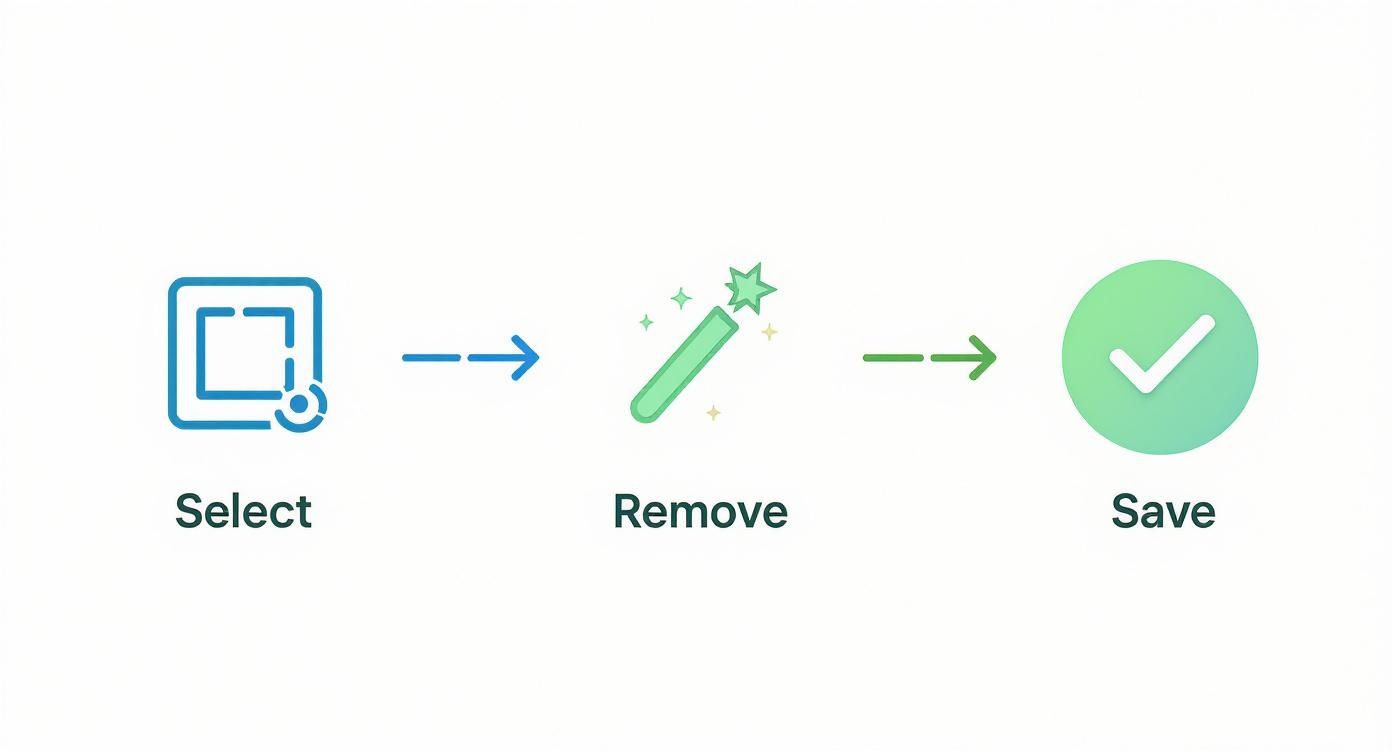
The key is to have a structured process. It just makes editing faster and more efficient.
A Practical Workflow for Tough Removals
Let's walk through a common, challenging scenario: removing a person standing in front of a building that has both brick and glass textures.
First, a pro tip: always work non-destructively. Create a new, blank layer on top of your photo. This keeps your original image safe and untouched while you work on the new layer.
Start with a loose selection around the person using the Lasso Tool. Don't worry about being too precise; give it a little breathing room. Now, head to Edit > Content-Aware Fill. Photoshop will show you a preview of its work. If it looks good, hit apply. This single step will probably handle 80% of the job for you.
Now comes the cleanup. You’ll probably see some soft or smudged areas where the brick meets the glass. This is where the Clone Stamp shines. On your new layer, select the Clone Stamp tool and make sure the "Sample" option in the top bar is set to "Current & Below." Now you can carefully rebuild the hard edges of the window frames and brick lines by sampling (Alt-clicking) from nearby clean areas.
The detailed interface in Photoshop is what gives you this granular control over every part of the removal.
Finally, switch to the Healing Brush to blend any last imperfections in the larger textures. Sample from a clean patch of brick to paint over any blurry spots, and then do the same for the glass. By bouncing between the right tools for the right texture, you end up with a final result that’s clean, sharp, and completely believable.
Using AI for Effortless Object Removal
If you've ever spent an hour meticulously cloning out a background object pixel by pixel, you'll know why AI has completely shaken up the world of photo editing. While manual tools give you the final say, they can be slow. Modern AI tools are a different beast altogether.
https://www.youtube.com/embed/FSy_4xEHXTM
This technology, often called inpainting, doesn't just copy and paste pixels from one area to another. It actually analyzes the entire context of your photo—the lighting, the textures, the perspective—to intelligently reconstruct what's behind the object you're removing.
The results can be stunning. An edit that would have taken a professional a good chunk of their afternoon can now be done in seconds. This isn't just a party trick; it's a powerful and incredibly efficient way to clean up your photos. Tools like Adobe Photoshop's Generative Fill and dedicated apps like TouchRetouch have made this magic accessible to everyone, turning a once-tedious job into a simple click or two.
The Power of Generative AI in Photo Editing
So, how does it really work? The core idea is simple but incredibly clever. When you tell the AI what to remove, it doesn't just look at the pixels right next to your selection. It studies the whole scene to figure out what should have been there.
Think about removing a car parked on a cobblestone street. A basic clone tool would likely leave you with repetitive, blotchy patterns that scream "edited!" An AI, on the other hand, understands the concept of a "cobblestone street." It generates entirely new, unique cobblestones that perfectly match the lighting, angle, and texture of the real ones, creating a far more believable scene.
This contextual awareness is what makes AI such a game-changer:
- Speed: Seriously, complex removals that used to be a major time-sink are often done in less than a minute.
- Quality: For busy, organic backgrounds like forests, crowds, or water, AI often produces a cleaner, more natural result than you could achieve by hand.
- Accessibility: You no longer need to be a Photoshop wizard to tackle tough edits. A simple selection is often all it takes.
The real magic of AI inpainting shines when you're dealing with visual chaos. For any background that's too complex or unpredictable for manual cloning, AI can generate a plausible fill that looks completely natural, saving you from a tedious and often frustrating editing session.
For a fantastic live demonstration of how AI can intelligently remove distracting elements like text from a complex background, check out this interactive text removal demo and see it in action.
Manual vs AI Object Removal
Deciding between a manual tool and an AI-powered one really comes down to the job at hand. Neither approach is a silver bullet; they just excel at different things. Knowing when to use which will make your workflow faster and your results better.
Here’s a direct comparison to help you choose the right tool.
| Feature | Manual Tools (Photoshop) | AI Tools (Generative Fill, APIs) |
|---|---|---|
| Precision | Gives you pixel-perfect control over every detail, edge, and texture. | Can sometimes soften details or misinterpret very complex scenes. |
| Speed | Can be slow and methodical, especially for large or intricate objects. | Incredibly fast, delivering results for complex edits in seconds. |
| Best Use Case | Perfect for replicating hard lines, geometric patterns, and fine-tuning small details. | Ideal for removing objects from organic, irregular, or busy backgrounds. |
| Consistency | The final result is entirely dependent on your skill and patience. | Provides consistently good results with very little user input required. |
| Learning Curve | Steeper. Mastering tools like the Clone Stamp takes real practice. | Almost none. It often just requires a simple selection or brush stroke. |
In my own work, I’ve found that the best approach is often a hybrid one. I'll frequently use Generative Fill to get rid of a large, distracting element in a landscape photo, which gets me 90% of the way there in an instant. Then, I'll jump over to the Clone Stamp or Healing Brush on a separate layer to clean up any tiny artifacts the AI might have left behind. It’s the best of both worlds.
Automating Object Removal at Scale with an API
For anyone managing a large volume of images—think developers, marketers, or e-commerce businesses—the true potential of AI lies in automation. Imagine needing to remove watermarks from thousands of user photos or clean up an entire catalog of product shots. Doing that one by one is a non-starter.
This is where an Application Programming Interface (API) changes the game. An API lets your own software or website "talk" directly to an AI image service like PixelPanda, automating the entire object removal process. Instead of you opening an editor, your system sends an image to the API and gets a cleaned-up version back moments later.
This is a massive time-saver for:
- E-commerce platforms that need to automatically remove props from seller-uploaded product photos.
- Social media apps that want to clean up user-generated content to maintain a consistent brand look.
- Real estate sites that have to erase clutter from thousands of property photos in bulk.
Using an API is more straightforward than it sounds. Here’s a quick conceptual example of what the code might look like using a cURL command to talk to an object removal API.
curl -X POST
-H "Authorization: Bearer YOUR_API_KEY"
-F "image_file=@/path/to/your/image.jpg"
-F "object_mask=@/path/to/your/mask.png"
https://api.pixelpanda.ai/v1/inpaint
In this snippet, you're sending three things: your unique API key, the image you want to edit, and a "mask" file—which is just a simple black-and-white image that tells the AI exactly what to remove. The API does all the heavy lifting on its servers and sends you back a link to the finished, clean image. This level of automation can save hundreds of hours of manual work and ensure visual consistency across a huge library of images.
Pro Tips for Tackling Complex Edits
Sure, anyone can get rid of a stray pole on a simple, flat background. But the real test of skill comes when you’re faced with the tricky stuff—the edits that make most people throw in the towel. We’re talking about fine hair, complex textures, and tricky lighting that can instantly betray a sloppy removal job.
This is where you graduate from simply using a tool to thinking like a professional retoucher. It takes a bit more patience and a keen eye, for sure, but mastering these challenges is what separates a decent edit from a truly invisible one. The goal is to make it look like the object was never there to begin with.
Working with Hair and Fine Details
Removing something tangled up in hair, delicate tree branches, or a chain-link fence is probably one of the biggest headaches in photo editing. A clumsy approach with a standard healing brush just creates a blurry, smudged mess that screams "fake."
The secret here is all about precision and layering. Don't try to remove the object in one huge swipe. Instead, work in small, careful sections. I've found the best approach is often a combination of the Clone Stamp tool on a low opacity and a very small, soft brush. This lets you slowly rebuild the background through the strands of hair instead of just painting over them.
Another great technique is to lean on layer masks. You can often get a much cleaner result by cloning a larger piece of the background onto a new layer, then using a mask to meticulously paint it back in around those tricky fine edges.
Reconstructing Shadows and Reflections
A massive giveaway of a poor edit is messed-up lighting. When you remove an object, you have to remember to remove its shadow and any reflections it casts. Forgetting this step leaves a ghostly artifact that our eyes are hardwired to notice immediately.
But it’s not just about removing—it’s about reconstructing. You have to stop and think about how the light in the scene would actually behave if that object were gone.
-
Shadows: Once the object is gone, look at the other shadows in the photo. Which way are they falling? How soft or hard are their edges? You might need to use a soft, black brush on a new layer with a low opacity to gently paint in a new, subtle shadow where the background is now exposed.
-
Reflections: Erasing something from a reflective surface like water, glass, or polished metal is even more challenging. You have to rebuild what would have been reflected in its place. This is where you’ll rely heavily on the Clone Stamp tool to sample from other parts of the reflection and blend them in seamlessly.
The ultimate goal is to maintain the lighting's consistency across the entire image. If you remove a person standing on a sunny sidewalk, the patch of ground you create to replace them must be just as bright as the surrounding pavement. Any mismatch in brightness or color will instantly break the illusion.
Your Final Quality Control Checklist
Before you hit "save," the final step is always a thorough quality check. It's incredibly easy to become blind to small imperfections after staring at the same image for a while. My advice? Step away for a few minutes, then come back with fresh eyes to scrutinize your work.
Zoom in to 100% or even 200% and slowly pan across the edited area. This is where you'll spot the little mistakes you missed at a normal view.
Here's a quick checklist to run through:
- Check for Repetitive Patterns: The Clone Stamp tool can sometimes create an obvious repeating texture—a classic rookie mistake. Go back in with a Healing Brush to break up the pattern and make it look more organic.
- Look for Blurry or Smudged Edges: Are the edges of your filled-in area as sharp as the rest of the photo? Soft, blurry patches are a dead giveaway.
- Inspect the Lighting and Color: Does the color temperature of the new patch match its surroundings perfectly? Is the brightness and contrast consistent?
- Scan for "Halos" or Dark Outlines: Some removal tools can leave a faint outline or "halo" around the edited area. These need to be carefully blended away.
Maintaining image quality is everything. If your edits leave you with a low-resolution or pixelated final image, it defeats the whole purpose. When heavy editing degrades the original quality, you can often restore sharpness and detail. You can learn more by exploring an AI-powered image upscaling demo to see how it's possible to bring clarity back to your photos.
Common Questions About Removing Objects From Photos
As you start digging into photo editing, you'll inevitably run into a few common questions and roadblocks. Getting ahead of these can save you a ton of frustration and help you get much better, much faster. Let's tackle some of the things people ask most often.
What's the Best Free Tool to Remove an Object From a Photo?
If you're on a desktop and need some serious editing power without paying a dime, GIMP is the undisputed king. It’s a full-blown photo editor with tools like the Clone Stamp and Heal Selection that go toe-to-toe with what Photoshop offers. It's fantastic for detailed, hands-on work.
For quick edits on your phone, you can't go wrong with Google's Snapseed. The "Healing" brush is incredibly easy to use and surprisingly effective for getting rid of small distractions, photobombers, or random objects in your shot. It's my go-to for on-the-fly fixes.
Why Does My Edited Area Look Blurry or Smudged?
Ah, the classic tell-tale sign of a beginner's edit. This almost always comes down to one of two things. First, you might be using a brush that’s way too soft. This causes the edges to feather out, leaving behind a soft, unnatural-looking patch that just screams "I was edited!"
The other common culprit is sampling from the wrong place. The tool might be grabbing pixels from a smooth, textureless area (like a clear sky) to fill a spot that needs more detail (like blades of grass or gravel). That texture mismatch is what creates the smudge.
A quick tip to fix this: always match your textures. Use a harder-edged brush when you’re working near sharp lines. Most importantly, make sure you're cloning or healing from an area with nearly identical texture and lighting. The Clone Stamp tool gives you the most control here.
Can AI Completely Replace Manual Editing?
AI tools have gotten ridiculously good. They can handle complex removals in seconds—jobs that used to take me hours of painstaking manual work. For a lot of scenarios, especially with busy backgrounds like forests or crowds, AI often delivers a better result, and it does it way faster.
But manual editing isn't going anywhere. It still offers the ultimate degree of control. There are plenty of times when an AI gets the interpretation just slightly wrong, and you need to jump in with a manual tool to rebuild a sharp edge, correct a weird artifact, or just nudge a detail into place.
The best workflow I've found is a hybrid one. Let the AI do the heavy lifting for 90% of the job, then switch over to your trusted manual tools to polish that last 10% to perfection.
Ready to see what AI can do for your own projects? With PixelPanda, you can automate object removal and background cleanup with a simple API. You can start building with our free trial today and see just how easy it is to get studio-quality results.